
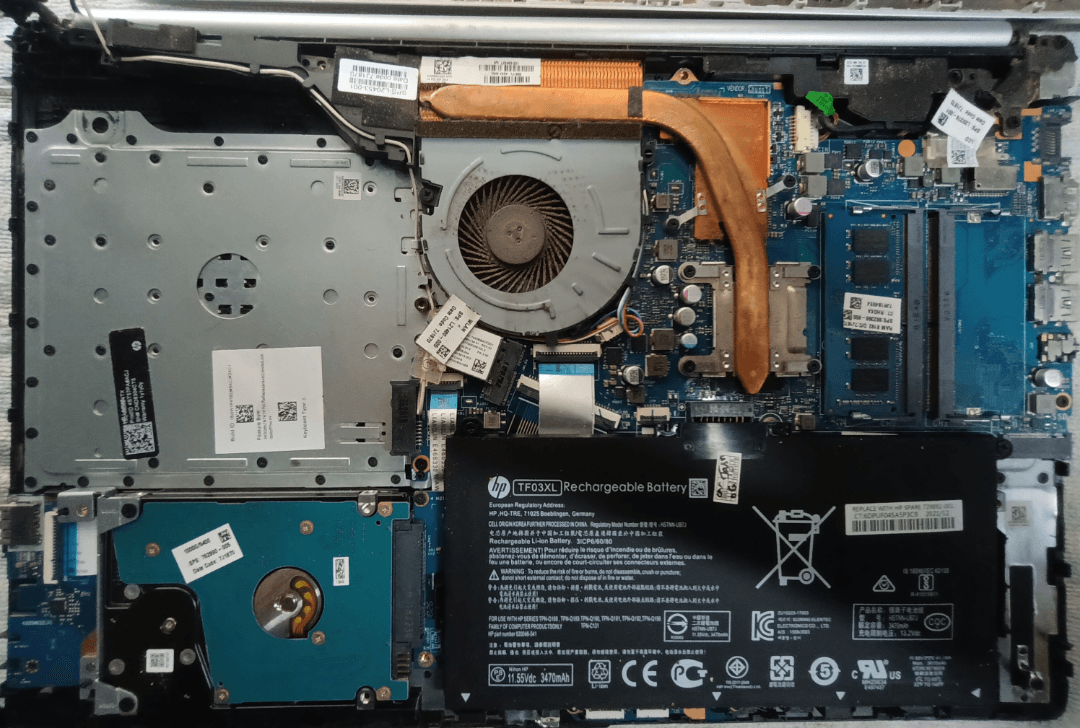
You can find what HP laptop you have by checking Windows settings, the model label, BIOS, or HP support tools.
Knowing what HP laptop you have helps you find the right drivers, chargers, parts, manuals, and upgrade options. The model name may look confusing at first, especially when HP uses similar names across Pavilion, Envy, EliteBook, ProBook, and Spectre lines. This guide explains the safest ways to identify your HP laptop, even if the sticker is missing or the computer will not start.
Why you should know what HP laptop you have
Your HP laptop model is more than a name. It identifies the device family, screen size, processor options, ports, battery type, and supported software. Two laptops may both say “HP Pavilion,” yet use different batteries, displays, keyboards, and chargers.
Knowing what HP laptop you have can help you:
• Download the correct driver updates
• Find the right user guide
• Order a matching charger or battery
• Check RAM and storage upgrade limits
• Confirm warranty or support details
• Sell or donate the laptop with accurate information
• Fix problems without installing the wrong software
HP normally uses several identifiers. The product name describes the family, such as HP 15 or HP Envy x360. The product number gives a more exact configuration. The serial number identifies your individual laptop.
In my experience helping people identify older computers, the product name alone is often not enough. A label such as “HP 15 Notebook PC” can cover many versions. The product number is usually the key that separates one model from another.

Find what HP laptop you have in Windows Settings
Windows Settings is often the easiest place to begin. This method works on many Windows 10 and Windows 11 HP laptops.
Press the Windows key and the I key at the same time.
Select System.
Scroll down and select About.
Look for Device specifications.
Check the entries for Device name, Processor, and System model.
Windows may show a general name instead of the full HP product number. For example, it may display “HP Laptop 15-dy0xxx” or “HP Pavilion Laptop 14.” This is useful, but you may need another method for an exact identification.
You can also use Windows System Information:
Press the Windows key and the R key.
Type
msinfo32.Press Enter.
Find System Manufacturer and System Model.
The System Model field may show the exact series or a shortened code. Copy this information into a note before searching for drivers. A small typing error can lead you to the wrong support page.
One mistake I often see is searching only for “HP laptop driver.” That search is too broad. Drivers depend on the exact model, Windows version, processor platform, and hardware configuration.

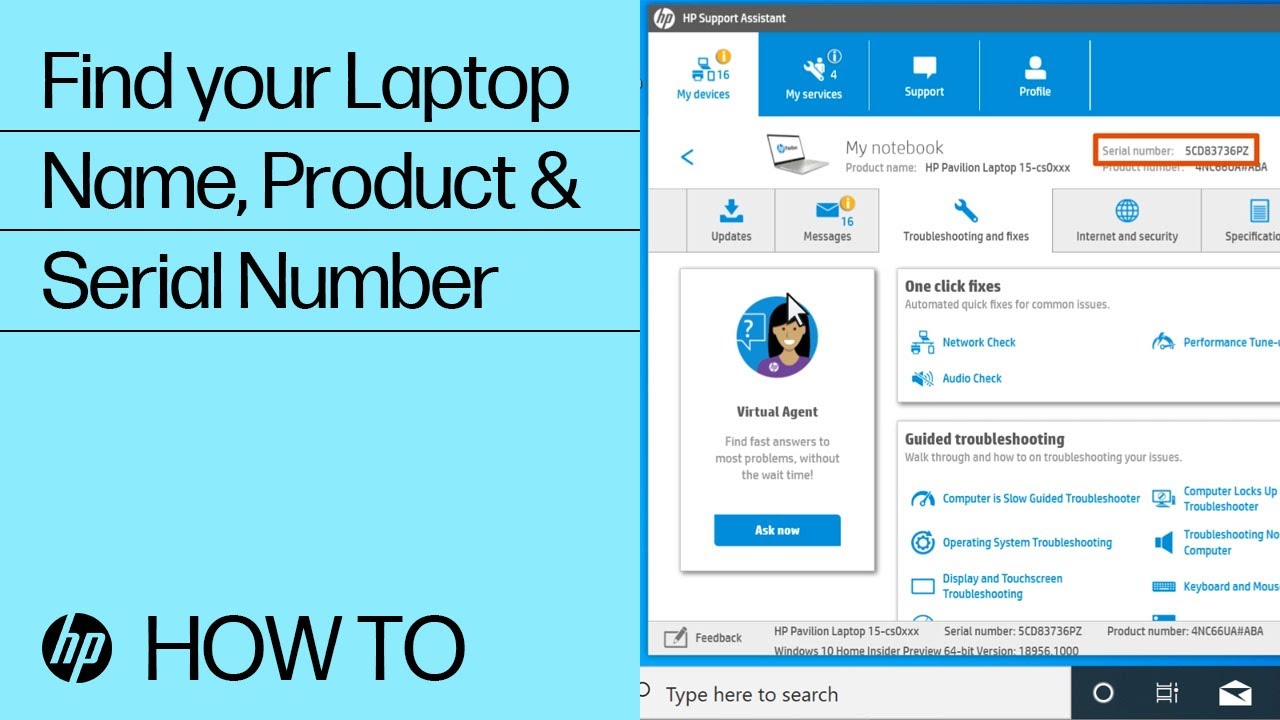
Use the HP Support Assistant app
Many HP laptops include HP Support Assistant. This app can identify your computer and show its support details in one place.
To use it:
Open the Start menu.
Search for HP Support Assistant.
Open the app.
Find the section showing your device.
Review the product name, serial number, warranty status, and available updates.
If the app is missing, you can download it from HP’s official support website. Use care when downloading support software. Choose the official HP website instead of a random driver site.
HP Support Assistant can be useful because it connects the laptop’s identity with recommended drivers and firmware. It may also show the warranty period and support options. However, the information can differ by region, laptop age, or installed software version.
The app should not be your only source if you plan to buy replacement parts. Confirm the product number on the laptop label or in BIOS first. This extra check can prevent an expensive battery or screen mistake.

Check the laptop label and bottom case
Turn the laptop off, unplug it, and close the display. Look at the bottom case for a printed label, engraved text, or small panel.
You may see several details:
• Product name
• Product number
• Serial number
• Warranty code
• Regulatory information
The product name may look like “HP Pavilion 15,” while the product number may look like “15-eg0xxx” or a longer code with letters and numbers. The serial number is unique to your specific laptop.
Some HP laptops place the label inside the battery compartment. If your battery is removable, take it out only when the laptop is fully shut down and disconnected from power. Do not force the battery or open a sealed case just to find the label.
On newer models, the label may be very small or may wear away. Take a clear photo with your phone and zoom in. This is safer than guessing from the laptop’s appearance.
A common error is confusing the serial number with the product number. The serial number identifies one device. The product number identifies the model configuration. You may need both when contacting HP support.

Identify your HP laptop through BIOS
BIOS, or UEFI firmware, stores basic hardware information before Windows starts. This makes it useful when Windows will not load.
To open the BIOS information screen:
Shut down the HP laptop.
Press the power button.
Immediately tap the Esc key several times.
When the Startup Menu appears, press F10.
Look for Product Name, Product Number, and Serial Number.
On some HP models, pressing F10 directly during startup opens BIOS Setup. The exact screen may vary by model and firmware version.
Write down the product number exactly as shown. Pay attention to letters such as O, I, and S, which can look like numbers. If possible, take a photo of the screen.
Do not change BIOS settings while you are checking the model. Simply read the information and exit without saving changes. Changing settings without knowing their purpose can affect startup, virtualization, boot order, or security features.
BIOS is one of the best options when you are trying to find what HP laptop you have but cannot access the Windows desktop.
Find the model with Command Prompt
Command Prompt can display the computer’s manufacturer and model in a few seconds.
Open the Start menu.
Type Command Prompt.
Select it from the results.
Enter this command:
wmic csproduct get name, identifyingnumber
- Press Enter.
The result may show the model name and product number. On newer Windows installations, the WMIC tool may not be available. If that happens, use PowerShell instead.
Open PowerShell and enter:
Get-CimInstance -ClassName Win32_ComputerSystemProduct | Select-Object Name, IdentifyingNumber
You can also check the Windows system model with:
Get-CimInstance -ClassName Win32_ComputerSystem | Select-Object Manufacturer, Model
These commands are safe because they only read system information. They do not change files or settings.
Still, software can sometimes report a generic model code. If the result says “HP 1234” or another broad label, compare it with the bottom label, BIOS, or HP support page.

Use the HP website to confirm the exact model
After you find the product number or serial number, use HP’s official product detection or support page to confirm the laptop.
The support page may show:
• Full product name
• Original operating system
• Driver and firmware downloads
• Warranty information
• Repair guides
• User manuals
• Compatible parts
Enter the product number carefully. HP may ask for a country or region because available support and parts can vary.
If you use the serial number, check that the displayed product matches your physical laptop. A serial number is more precise, but the product number is often more useful when shopping for replacement parts.
Avoid downloading drivers from websites that promise “one-click driver updates.” These tools may install incorrect or unwanted programs. Windows Update and the official HP support page are safer choices.
When I compare a laptop with an online listing, I check three details before trusting the result: the product number, screen size, and processor. If two of those do not match, I stop and investigate instead of ordering a part.
Identify an HP laptop that will not turn on
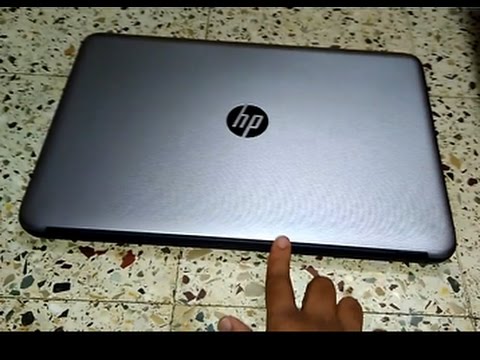
A dead laptop can still reveal its identity. Start with the bottom case label, since it does not require power.
If the label is unreadable, try these options:
• Look at the original box or receipt.
• Check an email confirmation from the purchase.
• Review your Microsoft account device list.
• Look for an old HP support email.
• Remove the battery only if the design allows it safely.
• Connect the charger and check for startup lights.
If the laptop starts but Windows does not load, open the Startup Menu with the Esc key and enter BIOS with F10. This often shows the product number even when the operating system has a serious problem.
If the screen remains black, connect the laptop to power and observe the charging light. You can also try an external display, but do not repeatedly press random function keys. Some startup problems need a repair technician, especially if there is liquid damage, swelling, burning odor, or unusual heat.
Never open a sealed battery. A swollen lithium-ion battery can be dangerous. If the bottom case is lifting or the touchpad is rising, turn the laptop off and seek professional service.
Understand HP model names and numbers
HP laptop names can seem like a family tree. The brand is HP, the series is something like Pavilion or EliteBook, and the number describes the general size or product family.
Common HP laptop families include:
• HP Pavilion: General home, school, and everyday use
• HP Envy: Premium home laptops with stronger designs and features
• HP Spectre: High-end thin laptops and convertible models
• HP EliteBook: Business laptops with enterprise features
• HP ProBook: Business-focused laptops for everyday work
• HP Omen: Gaming laptops with dedicated graphics
• HP Victus: Gaming laptops aimed at a wider price range
• HP Chromebook: Laptops that use ChromeOS instead of Windows
A model may include terms such as x360, which usually means the screen folds around into tablet mode. “Touch” may indicate a touch display, but not every laptop in the same series has touch support.
The generation or year can matter. An HP Pavilion 15 from one year may look almost the same as a newer Pavilion 15, while using different ports and parts. That is why “HP Pavilion 15” is not always a complete answer to what HP laptop you have.
Check whether your HP laptop is Windows or Chromebook
Not every HP laptop runs Windows. Some HP laptops use ChromeOS, and the identification steps are different.
On a Windows laptop, you usually see the Windows logo, Start menu, and Settings app. On an HP Chromebook, you see the ChromeOS shelf and launcher.
To identify an HP Chromebook:
Turn on the Chromebook.
Select the time in the lower-right corner.
Select Settings.
Choose About ChromeOS.
Review the device information.
You can also find the model on the bottom case or original packaging. HP Chromebook names may include Chromebook, x360, or a model number tied to the screen size.
Do not install Windows drivers on a Chromebook. ChromeOS manages many drivers through system updates, and Windows software will not work in the usual way.
This difference matters when you search what HP laptop you have. The same HP brand can cover Windows notebooks and Chromebooks with very different hardware and support systems.
What to do after you find what HP laptop you have
Once you identify the model, save the details in a safe place. A simple note can include the product name, product number, serial number, processor, RAM, storage, and operating system.
Then take these practical steps:
Visit the official HP support page.
Confirm the model and operating system.
Install only needed driver updates.
Check for BIOS updates carefully.
Save the user manual as a PDF.
Record the warranty date if available.
Check upgrade options before buying parts.
Be careful with BIOS updates. They can improve compatibility or fix security issues, but a failed update can stop the laptop from starting. Keep the charger connected, avoid interrupting the process, and use firmware made for the exact model.
For RAM and storage upgrades, check the service manual and the existing hardware. Some thin HP laptops have memory soldered to the motherboard. In that case, the laptop may not support a RAM upgrade even if the product family appears upgradeable.
Common mistakes when identifying an HP laptop
Finding what HP laptop you have is usually simple, but a few mistakes can create confusion.
• Reading the series name only: “HP Envy” does not identify the exact model.
• Using the serial number as the product number: These numbers serve different purposes.
• Trusting a generic Windows name: Windows may not show the complete product code.
• Guessing from the charger: Several HP models can use similar chargers.
• Ordering parts by screen size alone: A 15.6-inch display may have different connectors or mounting points.
• Installing a driver for a similar model: Similar names do not guarantee compatibility.
• Ignoring the operating system: Windows and ChromeOS require different support steps.
• Changing BIOS settings accidentally: Read the information without saving changes.
The safest approach is to confirm the same model in two places. For example, compare the product number in BIOS with the label on the bottom case. If both match, you can search for support with much greater confidence.
Frequently Asked Questions About What HP Laptop Do I Have
How do I find what HP laptop I have without turning it on?
Check the bottom case for the product name, product number, and serial number. You can also look at the original box, receipt, purchase email, or battery compartment if the battery is safely removable.
How do I find what HP laptop I have in Windows 11?
Open Settings, select System, and choose About. You can also press Windows and R, type msinfo32, and check the System Model field.
Is the HP product number the same as the model number?
They are related, but they may not be identical in everyday use. The product number gives a more specific configuration, while the model name may describe a wider product family.
Can I identify my HP laptop from the serial number?
Yes. Enter the serial number on HP’s official support website to view the device record. Check that the displayed product matches the laptop you physically own.
How do I identify an HP laptop that will not start?
Look for the product label on the bottom case, or open the BIOS Startup Menu by pressing Esc during startup and then F10. BIOS often displays the product name and product number even when Windows cannot load.
Why does Windows show a generic HP laptop name?
Some HP systems store a short or generic name in Windows. Use the product number from the label, BIOS, or HP Support Assistant for a more exact identification.
Can I find my HP laptop model from Command Prompt?
Yes. You can use wmic csproduct get name, identifyingnumber on supported systems. If WMIC is unavailable, PowerShell can display the model with a CIM command.
Conclusion
You can find what HP laptop you have through Windows Settings, System Information, HP Support Assistant, the bottom label, BIOS, Command Prompt, or the official HP support page. The product number is usually the most useful detail because it separates similar laptop versions.
Confirm the information in at least two places before downloading drivers, buying parts, or updating BIOS. Save the model details now, and you will save time the next time your laptop needs support. If this guide helped, explore more laptop maintenance resources or share your exact HP model in the comments.