
Use Device Manager on Windows to disable the touchscreen, then restart or re-enable it whenever you need touch input.
Knowing how to turn off touch screen input can make a laptop easier to use with a mouse and keyboard. It can also stop ghost touches, clean-screen mishaps, and unwanted taps during presentations. This guide explains safe methods for Windows, Chromebooks, Macs, Android devices, and iPads, plus simple fixes if the screen turns itself back on.
Why turn off a touch screen?
Touch screens are useful, but they are not ideal for every task. A cracked screen, faulty digitizer, wet display, or loose hardware can create random taps called ghost touches.
You may also want to turn off touch screen input when:
• You use your laptop like a desktop computer
• Your palm keeps touching the display while you write
• A child or pet taps the screen during work
• You are cleaning the display
• The touch feature is damaged or behaves poorly
• You want to save power on a compatible device
Turning off touch input does not usually turn off the display. Your screen will still show images, and you can keep using a mouse, trackpad, keyboard, or stylus if the device supports one.
The key point is simple: disabling touch is often a software change, not a permanent repair. You can reverse it later through the same settings menu.

How to turn off touch screen on Windows 11 and Windows 10
Windows provides the clearest built-in method through Device Manager. This works on many touchscreen laptops, two-in-one PCs, and Microsoft Surface devices.
Turn off the touchscreen with Device Manager
Press Windows + X on your keyboard.
Select Device Manager.
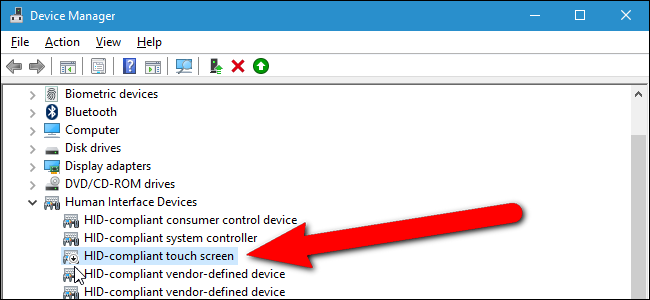
Expand the Human Interface Devices section.
Find HID-compliant touch screen.
Right-click it.
Select Disable device.
Confirm the action if Windows asks.
The display should remain on, but touch input will stop. Test it with your finger. Your mouse, trackpad, and keyboard should continue to work as normal.
If you see more than one HID-compliant touch screen entry, disable one at a time. Test the screen after each change. Some devices have more than one touch controller, and disabling the wrong entry may affect a pen, button, or other input feature.
Turn off the touchscreen with Windows search
You can also open Device Manager through search:
Select the Start button.
Type Device Manager.
Open the matching result.
Expand Human Interface Devices.
Right-click HID-compliant touch screen.
Choose Disable device.
This method is the same on most supported versions of Windows. The menu names can vary slightly after system updates, but the device path is usually unchanged.
How to turn on the touchscreen again
To restore touch input, repeat the steps above:
Open Device Manager.
Expand Human Interface Devices.
Right-click HID-compliant touch screen.
Select Enable device.
Restart Windows if touch input does not return at once. A restart gives the driver a fresh start and often clears temporary hardware communication errors.
A practical Windows tip
Before disabling the screen, make sure your mouse or trackpad works. I have seen people disable touch input while their trackpad driver was also faulty. That left them with only keyboard shortcuts to recover the setting.
It is also smart to write down the steps before you begin. This small habit prevents stress if you need to turn on touch without a working pointer.

How to turn off touch screen using Windows PowerShell
Advanced users can disable the touch device with PowerShell. This method is useful when Device Manager is hard to access or when you manage several computers.
Open PowerShell as an administrator:
Open the Start menu.
Search for PowerShell.
Right-click Windows PowerShell.
Select Run as administrator.
Enter this command:
Get-PnpDevice -FriendlyName '*touch screen*'
Windows will show devices that match the name. Note the device instance ID, then use:
Disable-PnpDevice -InstanceId "YOUR-DEVICE-ID" -Confirm:$false
Replace YOUR-DEVICE-ID with the exact ID shown on your computer.
To enable the device later, use:
Enable-PnpDevice -InstanceId "YOUR-DEVICE-ID" -Confirm:$false
PowerShell is powerful, but it is less forgiving than Device Manager. Copy the device ID carefully. Do not disable unknown devices just because their names look similar.
This approach may also require administrator access. On a work or school computer, an administrator may block hardware changes.
How to turn off touch screen on a Chromebook
Chromebooks do not always offer a simple permanent switch in the regular Settings app. However, many models let you disable touch input with a Chrome shortcut.
Press:
Search + Shift + T
On some keyboards, the Search key has a magnifying glass icon. On newer models, it may be called the Launcher key.
Press the same shortcut again to restore touch input. If the shortcut does not work, your Chromebook model or ChromeOS version may not support it.
You can also try these checks:
• Update ChromeOS through Settings
• Restart the Chromebook
• Check whether the device is in tablet mode
• Ask the manufacturer for a model-specific option
Some school-managed Chromebooks may block changes to touch controls. In that case, only the school administrator may be able to change the setting.
How to turn off touch screen on a Mac
Most Mac computers do not have a built-in touchscreen, so there is usually no standard macOS setting for this task. MacBooks use a trackpad, keyboard, and external pointing devices instead.
If you use a third-party touchscreen monitor with a Mac, touch control may come from the monitor, a USB connection, or special driver software. Disconnecting the USB touch interface may stop touch while keeping the video signal active.
You can also check the monitor’s own menu. Some displays have a touch lock or USB touch option. The exact steps depend on the manufacturer.
Apple iPad devices are different from Macs. iPadOS does not normally provide a single system-wide switch to disable all touch input. Guided Access can limit touch in a specific app, which is useful for kiosks, children, or presentations.
To use Guided Access:
Open Settings.
Select Accessibility.
Tap Guided Access.
Turn it on.
Open the app you want to lock.
Triple-click the top button or Home button.
Adjust the touch settings.
Guided Access is not the same as fully turning off the iPad touchscreen. It limits touch within a session and can be ended with the device passcode or another approved method.

How to turn off touch screen on Android
Android phones and tablets usually do not offer a universal switch to disable the entire touchscreen. Menus differ by brand, Android version, and device type.
Some devices include features such as:
• Touch lock
• Screen pinning
• Interaction control
• Accidental touch protection
• Kiosk mode
• Accessibility touch controls
For example, Samsung devices may include interaction controls under Accessibility. Other brands may place similar features under Security, Accessibility, Display, or Advanced settings.
If you want to stop touch input while watching a video, look for a touch-lock feature inside the video app. If you need a full kiosk setup, a device management app may be required.
Be careful with third-party apps that promise to disable the screen. They may request broad accessibility permissions. Install only trusted apps, review their permissions, and remove them if they behave strangely.

How to turn off touch screen temporarily
Sometimes you do not need to disable the touchscreen at the system level. A temporary lock may be safer and faster.
Try these options:
• Lock the device with the power button
• Use a touch-lock feature in a video or reading app
• Place the laptop in tent or stand mode if supported
• Use a clean, dry screen protector
• Disconnect a faulty external touch monitor
• Use a keyboard shortcut provided by the device maker
Temporary control is helpful when cleaning a display or showing a video. It avoids changing drivers and lowers the chance of forgetting how to restore touch input.
If ghost touches continue after touch input is disabled, the cause may be more serious. A damaged digitizer can affect other device functions and may need professional repair.

What to do if touch screen keeps turning back on
A touchscreen may return after a Windows update, driver update, restart, or hardware scan. This does not always mean the computer is broken.
Try these steps:
Disable HID-compliant touch screen again.
Restart the computer.
Check Windows Update.
Install the latest driver from the computer maker.
Look for a BIOS or firmware update.
Check whether another user or management tool changed the setting.
Run a hardware diagnostic from the manufacturer.
Avoid deleting the touchscreen driver unless support instructions tell you to do so. Disabling a device is easy to reverse. Removing a driver can create extra work and may cause Windows to reinstall it later.
If the touchscreen has visible cracks, liquid damage, swelling, or heat near the display, stop using the device and seek repair advice. Software changes cannot fix damaged hardware.

Benefits and limits of disabling touch input
Learning how to turn off touch screen input can solve several daily problems, but it is not a cure for every display issue.
Benefits
• Stops accidental taps
• Reduces problems from ghost touches
• Makes keyboard and mouse work more comfortably
• Helps while cleaning or presenting
• Lets you test whether touch hardware causes a problem
• Is usually easy to reverse
Limits
• It may not fix a cracked or wet screen
• Some devices require administrator access
• Updates may restore the touchscreen
• Shortcuts differ by brand
• A faulty digitizer may still affect the computer
• Disabling touch does not improve image quality
In my troubleshooting experience, the best first step is to separate software from hardware. Disable touch for a short test. If the random taps stop, the touch layer is likely involved. If they continue, inspect the mouse, trackpad, charger, keyboard, or other input devices.
Safety tips before disabling a touchscreen
The process is usually safe, but a few precautions can prevent trouble.
• Save your work before changing device settings.
• Connect a mouse if your trackpad is unreliable.
• Keep a keyboard available.
• Record the original device name and setting.
• Use an administrator account when required.
• Do not change unrelated devices in Device Manager.
• Download drivers only from the computer maker or Windows Update.
• Avoid registry edits unless you understand how to restore them.
Registry changes can sometimes control hardware behavior, but they are not the best first choice. Device Manager is safer, clearer, and easier for most people.
If you are working on a company, school, or shared computer, follow the organization’s policy. Hardware settings may be managed for security or accessibility reasons.
Frequently Asked Questions
Can I turn off the touchscreen without turning off the display?
Yes. On most Windows computers, disabling HID-compliant touch screen stops touch input while the display continues to show the desktop. You can still use a keyboard, mouse, or trackpad.
How do I turn touch back on after disabling it?
Open Device Manager and expand Human Interface Devices. Right-click HID-compliant touch screen, select Enable device, and restart the computer if touch does not return.
Does disabling the touchscreen save battery?
It may reduce a small amount of power use, but the difference varies by device. The main benefit is usually fewer accidental touches, not a major battery-life increase.
Why can’t I find HID-compliant touch screen?
Your computer may not have touch hardware, the driver may be missing, or Windows may list the device under a different name. Install official driver updates and check the manufacturer’s hardware support page.
Can a Windows update turn the touchscreen back on?
Yes. Windows updates, driver changes, and hardware detection can restore a disabled device. If this happens, disable HID-compliant touch screen again and check for updated manufacturer drivers.
Can I disable touch on an iPhone or Android phone?
Most phones do not offer a universal setting to disable every touch action. You may use Guided Access, screen pinning, interaction controls, or an app-based touch lock, depending on the device.
Is it safe to disable a touchscreen in Device Manager?
Yes, disabling the touchscreen is normally reversible and does not erase files. Use the correct HID-compliant touch screen entry, and avoid changing unrelated devices.
Conclusion
The easiest way to turn off touch screen input on a Windows laptop is to open Device Manager, expand Human Interface Devices, and disable HID-compliant touch screen. Chromebooks may support Search + Shift + T, while Macs, iPads, and Android devices often rely on model-specific controls or temporary access features.
Start with the safest reversible method. Keep a mouse or trackpad ready, record how to restore the setting, and seek repair help if cracks, liquid, or ghost touches point to hardware damage. If this guide helped, explore your device maker’s support resources or share your device model and experience in the comments.