
The right laptop balances performance, battery life, comfort, price, and your real daily needs.
A good laptop buying guide should do more than list popular models. It should help you match a laptop’s processor, memory, storage, screen, battery, and build quality to the way you work, study, create, or play. This guide explains the key choices in plain English, with practical tips to help you avoid paying for features you will never use.
Start With Your Main Laptop Needs
The best laptop depends on what you plan to do with it. A student writing papers has different needs from a video editor, software developer, or PC gamer. Start by listing your most common tasks before looking at brands or discounts.
Think of your laptop as a tool. A hammer is useful for one job, while a screwdriver is better for another. The same idea applies to laptops.
Most buyers fit into one or more of these groups:
• Basic users: Web browsing, email, video calls, streaming, and simple documents.
• Students: Research, note-taking, online classes, office apps, and light creative work.
• Office users: Spreadsheets, presentations, business software, multitasking, and video meetings.
• Creators: Photo editing, music production, graphic design, and video editing.
• Gamers: Modern games, high frame rates, strong graphics, and good cooling.
• Professionals: Specialized software such as engineering, coding, data analysis, or 3D design.
Write down the programs you use now. Then check their recommended system requirements. This simple step is one of the most useful parts of any laptop buying guide because it connects technical specifications to real needs.
If you only browse the web and write documents, a premium gaming laptop may waste money and battery life. If you edit 4K video, a thin entry-level laptop may feel slow within days.

Source: technowize.com
How Much Should You Spend on a Laptop?
Laptop prices vary widely, but a higher price does not always mean a better choice. A laptop’s value comes from the balance between performance, reliability, comfort, support, and useful features.
Here is a general budget guide for the US market:
• Under $400: Suitable for basic browsing, email, streaming, and simple schoolwork. Expect modest processors, limited storage, and more plastic in the build.
• $400 to $700: A strong range for students and home users. Many models offer modern processors, 8GB to 16GB of memory, and solid-state storage.
• $700 to $1,200: Often the best value for professionals, college students, and demanding multitaskers. You may find better screens, stronger builds, larger batteries, and faster processors.
• $1,200 to $2,000: Designed for creators, developers, business users, and people who want premium build quality.
• Above $2,000: Usually aimed at high-end gaming, professional video work, advanced 3D tasks, or specialized business use.
Do not spend your entire budget on the laptop alone. You may also need a case, mouse, USB-C hub, external drive, warranty, or software. A slightly cheaper laptop with the right ports and battery may serve you better than an expensive model that needs many accessories.
During my own laptop comparisons, I have found that the best value often sits in the middle of a product line. The cheapest model may cut memory or storage, while the top model may add power that most people never notice.

Source: hellotech.com
Choosing the Right Laptop Processor
The processor, or CPU, handles most instructions inside your laptop. It affects app speed, multitasking, battery use, and how long the laptop will remain useful.
Common processor families include Intel Core, AMD Ryzen, and Apple silicon. Qualcomm Snapdragon processors also appear in some Windows laptops. The brand matters less than the specific model, generation, power class, and performance for your tasks.
Look for these factors:
• Core count: More cores can help with multitasking and demanding work.
• Clock speed: Higher speeds can improve short bursts of performance, but clock speed alone does not tell the whole story.
• Processor generation: Newer chips often improve efficiency and battery life.
• Power design: A low-power chip may run longer and cooler, while a high-power chip can deliver more speed.
For basic use, a modern entry-level processor is usually enough. For office work, choose a mid-range chip if you regularly use large spreadsheets, many browser tabs, or video calls. For editing, coding, gaming, or 3D work, consider a higher-performance processor.
Apple silicon chips are known for strong efficiency and quiet operation, but they run macOS and may not support every Windows program. Windows laptops offer a wider range of hardware and software choices. Neither platform is best for every person.
A laptop buying guide should warn you not to compare processor names alone. Check the exact chip, because two processors with similar labels can have very different performance levels.
Source: amazon.in
How Much RAM Do You Need?
RAM, or memory, helps your laptop keep active apps and files ready. More RAM makes multitasking easier, but extra memory cannot fix every performance problem.
These amounts are useful starting points:
• 8GB: Fine for web browsing, email, office documents, streaming, and light schoolwork.
• 16GB: The best choice for many users. It supports heavier multitasking, photo editing, coding, and longer-term use.
• 32GB: Helpful for professional video editing, large creative projects, virtual machines, advanced coding, and serious gaming.
• 64GB or more: Usually needed only for specialized work, such as complex 3D projects, scientific tools, or large virtual environments.
If your budget allows, choose 16GB for a new laptop. Modern websites and apps can use more memory than many people expect. A browser with dozens of tabs, a video call, music, and a spreadsheet can quickly consume 8GB.
Also check whether the RAM is upgradeable. Some thin laptops have memory soldered to the main board. That design can save space, but it prevents future upgrades. If the laptop has only 8GB and cannot be upgraded, consider another model.
Source: learncomputerscienceonline.com
Storage: SSD Capacity and Speed
Storage holds your operating system, apps, photos, videos, and documents. Most modern laptops use an SSD, or solid-state drive. SSDs are much faster and quieter than older mechanical hard drives.
For most people, these capacities make sense:
• 128GB: Very limited. Use it only for light cloud-based work.
• 256GB: Acceptable for basic use, but it can fill quickly.
• 512GB: A strong starting point for work, school, and general use.
• 1TB: Better for games, photos, videos, and large software libraries.
• 2TB or more: Useful for creators and people who store large files locally.
A 512GB SSD does not provide a full 512GB of usable space because the operating system and recovery files use part of it. Games and video files can also consume storage quickly.
Check whether the laptop uses NVMe storage. NVMe SSDs are common in current laptops and offer fast response times. Still, storage speed matters less than storage capacity for many basic users.
Cloud storage can help, but it is not a complete replacement for local storage. It depends on internet access, subscription fees, and account security. Keep important files in at least two places, such as the laptop and an external drive or trusted cloud service.
Source: bestbuy.com
Choosing the Best Laptop Screen
You look at the screen every time you use the laptop, so display quality deserves serious attention. A bright, sharp screen can reduce eye strain and make work more pleasant.
Pay attention to these specifications:
• Size: A 13-inch or 14-inch screen is portable. A 15-inch or 16-inch screen gives you more room for work.
• Resolution: Full HD, or 1920 by 1080, is suitable for most users. Higher resolutions look sharper but may use more power.
• Brightness: Around 300 nits is a practical minimum for indoor use. Higher brightness helps near windows or outdoors.
• Refresh rate: A 60Hz screen is fine for office work. A 120Hz or higher panel feels smoother and benefits gaming.
• Panel type: IPS screens often provide good viewing angles. OLED screens offer deep blacks and strong contrast but may cost more.
• Touch support: Useful for drawing, browsing, or tablet-style laptops, but not essential for everyone.
Screen aspect ratio also matters. A 16:10 display gives more vertical space than a traditional 16:9 screen. That extra space helps with documents, web pages, and coding.
Watch for low-quality displays on inexpensive laptops. A laptop may have a fast processor but still feel unpleasant if the screen is dim, dull, or cramped. In this laptop buying guide, the screen is one area where seeing the machine in person can be valuable.

Source: thegadgetflow.com
Battery Life and Charging
Battery life depends on the processor, display, brightness, apps, wireless connection, and battery size. Manufacturer estimates can be useful, but they often come from controlled tests that do not match real use.
For everyday work, look for a laptop that can last through most of a school day or workday. A practical target is around eight hours of mixed use, though real results vary.
Battery performance can drop when you:
• Increase screen brightness.
• Use demanding creative or gaming software.
• Connect several wireless devices.
• Run many background apps.
• Use a high refresh rate or bright OLED display.
• Work in poor Wi-Fi conditions.
USB-C charging is convenient, especially when the laptop supports common USB-C Power Delivery chargers. Some gaming laptops still need large dedicated chargers because powerful graphics hardware uses more energy.
Read independent battery tests when possible. Reviews that measure web browsing, video playback, and productivity are more useful than a simple advertised number. Also check battery replacement options. Batteries wear out over time, and a serviceable design can extend the laptop’s useful life.

Source: hellotech.com
Laptop Size, Weight, and Build Quality
A laptop should fit your daily routine. If you carry it across campus or travel for work, weight matters. If it stays on a desk, a larger screen and stronger cooling system may be more useful.
Common size choices include:
• 13 to 14 inches: Easy to carry and good for travel.
• 15 to 16 inches: Better for spreadsheets, editing, and gaming.
• 17 inches or more: Offers a large workspace but is less portable.
Build quality also affects comfort and durability. Aluminum can feel more solid than basic plastic, but a well-designed plastic laptop can still be reliable. Look for a firm keyboard deck, a smooth hinge, and little flex around the screen.
Do not confuse thinness with quality. Very thin laptops can be excellent, but they may have fewer ports, less cooling capacity, and limited upgrade options. A slightly thicker model may run cooler and offer a better keyboard.
One common mistake I have seen is choosing a laptop based only on its weight. A light model is easy to carry, but a poor keyboard or weak battery becomes frustrating every day. Portability is important, but it should not erase comfort.
Source: stuff.tv
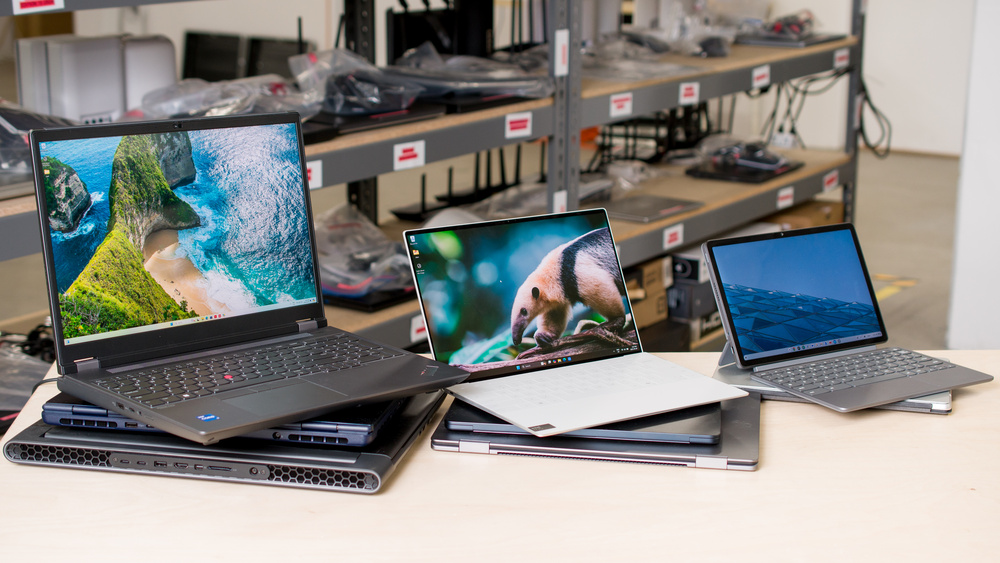
Keyboard, Trackpad, Webcam, and Speakers
Specifications do not show how a laptop feels to use. The keyboard, trackpad, camera, and speakers shape your daily experience.
A good keyboard should have clear key movement and enough spacing. If you write often, look for comfortable keys, a useful layout, and adjustable backlighting. Check the location of the power button, arrow keys, and function row as well.
A precise trackpad makes navigation easier. Windows Precision Touchpads and Apple trackpads are generally responsive, but quality still varies by model. A glass surface often feels smoother than a basic plastic one.
For remote work and online classes, check the webcam carefully. A 1080p camera usually provides a clearer image than a basic 720p camera, but lighting and software also matter. A privacy shutter is a simple feature that adds peace of mind.
Speakers vary greatly. Thin laptops may produce clear speech but limited bass. If you watch movies, attend meetings, or listen to music without headphones, read reviews that discuss sound quality rather than just speaker count.
Source: rtings.com
Ports and Wireless Connections
Ports determine how easily you connect your laptop to other devices. Before buying, list the accessories you use now and may use later.
Useful ports can include:
• USB-C: Used for charging, displays, storage, and accessories.
• USB-A: Helpful for older mice, flash drives, and other common devices.
• HDMI: Convenient for monitors, TVs, and projectors.
• Headphone jack: Useful if you use wired headphones or microphones.
• SD or microSD card slot: Valuable for photographers and video creators.
• Ethernet: Useful for fast, stable wired internet, though many thin laptops omit it.
USB-C does not always offer the same features on every laptop. One port may support charging only, while another may support high-speed data and external displays. Check the full specifications.
Wi-Fi 6 or newer can provide better performance on compatible networks. Bluetooth is important for wireless headphones, mice, keyboards, and controllers.
A laptop buying guide should treat ports as part of long-term value. Buying a laptop with too few ports can lead to extra dongles and clutter.
Windows, macOS, ChromeOS, and Linux
The operating system affects your apps, workflow, security, and device choices.
Windows supports the widest range of hardware, games, business tools, and accessories. It is often the safest choice for users who need specific work or school software.
macOS offers tight integration with Apple devices and a consistent interface. It is popular with many creators and professionals, but some Windows-only programs and games may not work natively.
ChromeOS is simple, fast, and centered on web apps and Android applications. Chromebooks work well for browsing, school platforms, writing, and cloud tools. They may not suit advanced editing, specialized software, or demanding games.
Linux gives experienced users more control and broad customization. It can be excellent for programming and technical work, but hardware support and app availability require more research.
Choose the operating system that supports your essential apps. Do not switch platforms only because a laptop looks attractive. Confirm compatibility first, especially for business software, printers, games, and school tools.
Gaming Laptop Buying Guide
Gaming laptops need more than a fast CPU. The graphics processor, cooling system, display, and power supply all affect gaming performance.
Important gaming features include:
• Dedicated graphics: A separate graphics processor is usually needed for modern 3D games.
• Video memory: More graphics memory helps with high-resolution textures and demanding games.
• High refresh rate: A 120Hz, 144Hz, or faster display can make motion look smoother.
• Cooling: Strong fans and heat pipes help maintain performance during long sessions.
• Memory: 16GB is a sensible starting point for current gaming.
• Storage: A 512GB SSD may hold several games, while 1TB gives more room.
A gaming laptop is often heavier and louder than a productivity laptop. Battery life may also be poor during gaming because the graphics processor uses substantial power. For the best performance, plan to play while connected to the charger.
Look at game benchmarks for the exact graphics chip and screen resolution. A graphics processor that performs well at 1080p may struggle at 1440p or 4K. Frame rate targets also vary by game, so one benchmark cannot describe every experience.
Laptop Buying Guide for Students
Students often need a mix of portability, battery life, reliability, and price. A good student laptop should be easy to carry, comfortable for long typing sessions, and capable of running school platforms and office apps.
For many students, a 13-inch or 14-inch laptop with 16GB of RAM, a 512GB SSD, and a modern mid-range processor is a strong choice. A bright screen and a good webcam are useful for classes and group work.
Before buying, check school requirements. Some programs in engineering, nursing, architecture, film, and computer science may require Windows or specific graphics hardware.
Also consider repair support and warranty service. A laptop that breaks during finals week creates more stress than a slightly slower laptop from a brand with better support.
Chromebooks can be excellent for schools that use browser-based tools. However, confirm that required testing software and apps work on ChromeOS before purchasing.
Laptop Buying Guide for Work and Business
Business users should focus on reliability, comfort, security, and support. A laptop used for eight hours each day needs a good keyboard, clear camera, strong Wi-Fi, and a comfortable screen.
Useful business features include:
• A fingerprint reader or infrared face login.
• A webcam privacy shutter.
• A durable hinge and sturdy chassis.
• A backlit keyboard.
• A reliable warranty and service network.
• A battery that can support long meetings and travel.
• A display with enough brightness for office and outdoor use.
For spreadsheets and multitasking, prioritize 16GB of RAM and a comfortable 14-inch or 15-inch screen. For frequent travel, choose a lighter model with USB-C charging.
Business users should also consider security updates and operating system support. A laptop is not a good bargain if it stops receiving important updates too soon.
Common Laptop Buying Mistakes to Avoid
The wrong purchase often comes from focusing on one attractive specification. A fast processor cannot fix a poor display, a small battery, or an uncomfortable keyboard.
Avoid these mistakes:
• Buying too little RAM: 4GB may feel limiting for modern everyday use.
• Choosing storage that is too small: 128GB can fill quickly after updates and apps.
• Trusting advertised battery life: Real use often produces lower results.
• Ignoring the screen: A dim display can make daily work tiring.
• Forgetting ports: You may need expensive adapters later.
• Buying a gaming laptop for simple work: It may be heavy, loud, and inefficient.
• Choosing a Chromebook without checking app support: Some desktop programs will not run.
• Paying for maximum specifications: Extra power may not improve your actual tasks.
• Ignoring return policies: Every laptop has trade-offs, and personal comfort is hard to judge from a product page.
A useful buying method is to create a short list of three models. Compare their processor, RAM, SSD, screen, battery tests, ports, weight, warranty, and total cost. This keeps marketing language from making the decision for you.
How to Compare Laptop Reviews
Reviews are helpful, but read them with your own needs in mind. One reviewer may praise a thin design, while another may criticize its limited ports. Both opinions can be accurate.
Look for tests that cover:
• Real battery use.
• Screen brightness and color quality.
• Fan noise and surface temperature.
• Keyboard and trackpad comfort.
• Webcam and microphone quality.
• Performance under sustained workloads.
• Upgrade and repair options.
• Warranty and customer support.
Pay attention to the exact configuration tested. A laptop line may include several processors, screens, batteries, and memory options. A review of one configuration may not represent another.
Retailer reviews can reveal problems that laboratory tests miss, such as hinge issues, driver bugs, or inconsistent quality. However, online reviews can also reflect isolated experiences. Look for repeated patterns across many sources.
A Simple Laptop Buying Checklist
Use this checklist before placing your order:
- Define your main tasks.
- Set a realistic total budget.
- Choose the operating system that supports your required apps.
- Select a processor suited to your workload.
- Choose at least 8GB of RAM, or 16GB for stronger long-term value.
- Select a 512GB SSD if you store files locally.
- Check screen size, brightness, resolution, and refresh rate.
- Review battery tests instead of trusting estimates alone.
- Confirm the ports and wireless standards.
- Test the keyboard, trackpad, webcam, and speakers if possible.
- Check upgrade options and repair policies.
- Compare the return policy and warranty.
- Read reviews for the exact model number.
- Buy only after checking current prices and available discounts.
This process turns a confusing laptop buying guide into a clear decision. You do not need to know every technical detail. You only need to understand which details affect your daily use.
Frequently Asked Questions About Laptop Buying Guide
What is the most important feature when buying a laptop?
The most important feature is the laptop’s fit for your main tasks. Processor speed, RAM, battery life, display quality, and comfort all matter, but the right balance is more valuable than one impressive specification.
Is 8GB of RAM enough for a laptop?
Eight gigabytes is enough for basic browsing, office work, streaming, and light school use. Choose 16GB if you multitask heavily, edit photos or videos, code, play modern games, or want more room for future software.
How much SSD storage should a laptop have?
A 512GB SSD is a good starting point for most users. Choose 1TB or more if you keep many games, videos, photos, or professional applications on the laptop.
Is a gaming laptop good for everyday work?
A gaming laptop can handle everyday work very well, but it may be heavier, louder, and less efficient than a productivity laptop. It makes sense when you also need strong graphics performance for games or creative software.
How long should a laptop last?
A quality laptop can often remain useful for four to seven years, depending on its hardware, care, software needs, and repair options. Choosing enough RAM, storage, and processor performance can help extend its useful life.
Should you buy a Windows laptop or a MacBook?
Choose Windows if you need broad software, gaming, or hardware compatibility. Choose a MacBook if you prefer macOS, use other Apple devices, and your required apps support that platform.
Are Chromebooks good laptops?
Chromebooks are good for web browsing, schoolwork, email, video calls, and cloud-based apps. They are less suitable for specialized desktop software, advanced gaming, and some professional creative tools.
Conclusion
A smart laptop purchase starts with your real needs, not a flashy product name. Match the processor and graphics power to your tasks, choose enough RAM and SSD storage, and give serious attention to the screen, keyboard, battery, ports, operating system, and warranty.
Use this laptop buying guide to compare complete configurations instead of isolated specifications. Check independent tests, confirm software compatibility, and leave room in your budget for useful accessories. When you find a model that fits your work, budget, and daily habits, you can buy with confidence. Explore current models, compare your shortlist carefully, and share your own laptop buying tips in the comments.