
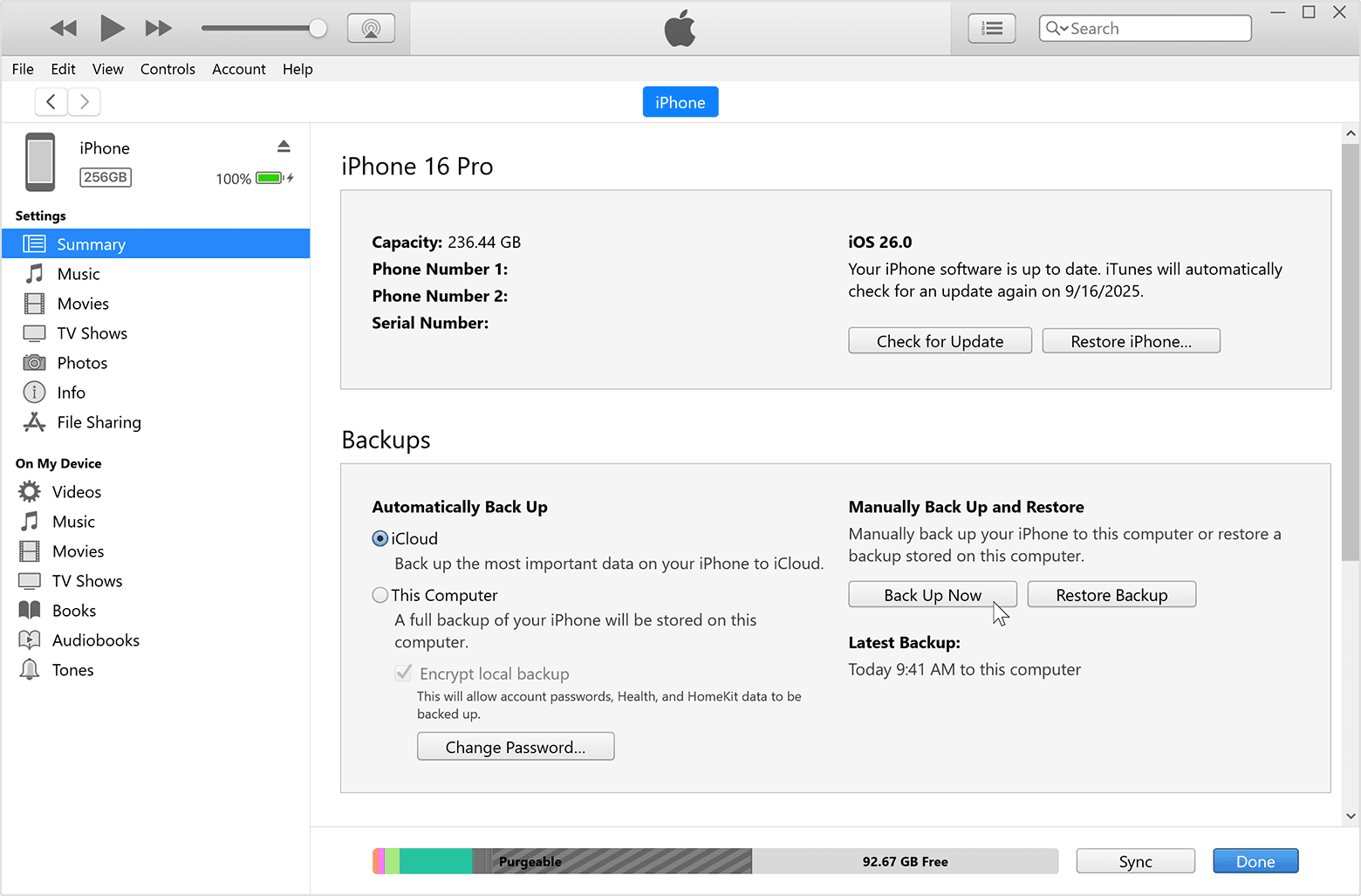
Back up your computer by copying important files to an external drive, cloud service, or both.
Learning how to backup your computer protects your photos, work files, passwords, and personal records from hard-drive failure, theft, malware, and simple mistakes. I have seen people lose years of family photos because they trusted one aging laptop, so this guide explains safe backup methods, clear steps, and easy ways to test that your files can truly be restored.
Why You Should Back Up Your Computer
A backup is a separate copy of your data. It gives you a way to recover files after something goes wrong.
Computers can fail without warning. A hard drive may stop working, a laptop may be stolen, or a spilled drink may damage the device. Malware and ransomware can also lock or delete your files.
Knowing how to backup your computer can save time, money, and stress. It is much easier to restore a copy than to rebuild your digital life from memory.
Common risks include:
• Hardware failure from age, heat, or physical damage
• Accidental deletion or overwriting
• Theft or loss
• Fire, flood, or other disasters
• Malware and ransomware
• Failed software updates
• Lost access to an online account
A backup also helps when you buy a new computer. Instead of moving files one by one, you can restore your documents, photos, and settings from a prepared copy.

The Best Backup Rule: 3-2-1
The 3-2-1 backup rule is a simple standard used by many IT professionals. It means keeping:
• Three copies of your important data
• Two copies on different types of storage
• One copy in a different location
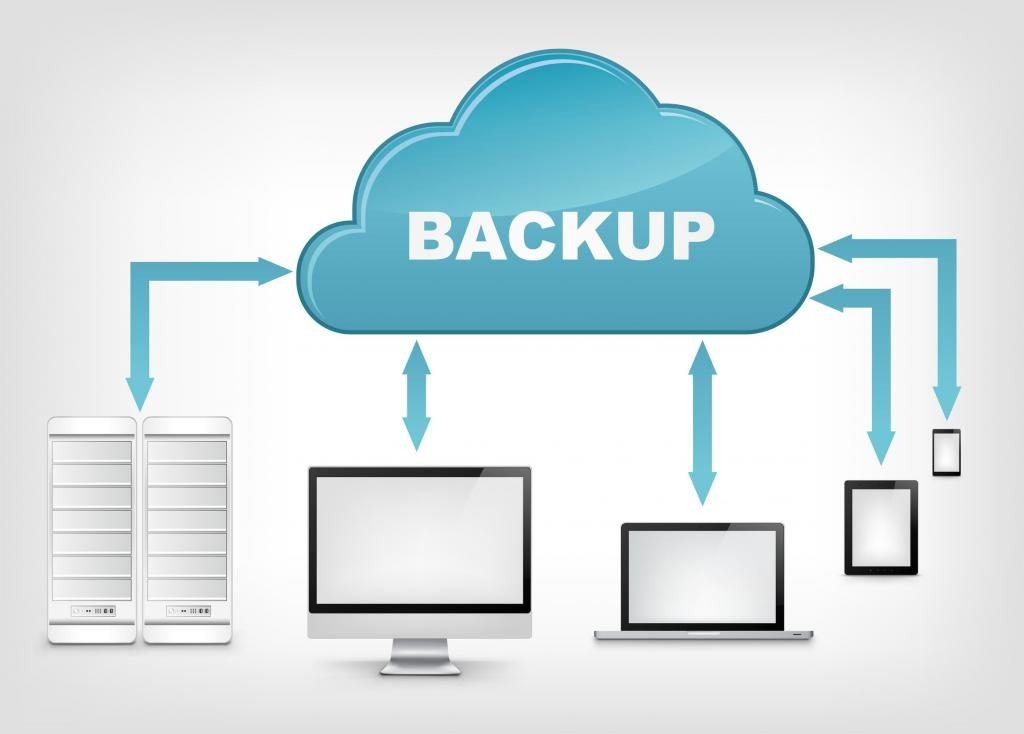
For example, you might keep the original files on your computer, a copy on an external hard drive, and another copy in cloud storage. The cloud copy protects you if a fire, theft, or flood destroys both your computer and the drive beside it.
The 3-2-1 method is not the only valid approach. A small amount of data may fit well in cloud storage, while a business may need automatic backups, offline copies, and stronger controls. Still, it is an excellent starting point for most homes and small offices.
One important detail is that a backup should not remain connected all the time if ransomware is a concern. Some malware can reach connected drives and encrypt their contents. An external drive that stays unplugged after each backup is safer.
Choose What to Back Up
Before you learn how to backup your computer, decide which files matter most. This keeps the process simple and helps you avoid paying for storage you do not need.
Important items often include:
• Personal documents and tax records
• Family photos and videos
• School or work projects
• Music and creative files
• Email archives
• Browser bookmarks
• Contacts and calendars
• Game saves
• Password manager backups
• Software licenses and recovery codes
Your operating system and apps may also need protection. A file backup saves personal data, but it may not make your computer bootable. A full system image can include Windows or macOS, installed programs, settings, and files.
Some folders may not need backup. Temporary downloads, cached files, and streaming media can usually be downloaded again. However, check each program before excluding its folders. Some apps store important data in less obvious locations.
Make a short list of irreplaceable files first. Ask yourself, “What would I be unable to replace?” Start with those files, then expand your backup as your needs grow.

How to Back Up a Windows Computer
Windows includes built-in tools that can help you protect files and create system recovery media. The exact menu names may vary by Windows version, but the basic process remains similar.
Use File History
File History can automatically copy files from common folders to an external drive or network location.
Connect an external hard drive with enough free space.
Open Settings.
Go to Update & Security or System, depending on your Windows version.
Open Backup.
Select the option for File History or Windows backup.
Choose your external drive.
Select the folders and backup schedule you want.
File History is useful because it can keep older versions of files. If you accidentally replace a document, you may be able to recover an earlier copy.
Create a system image
A system image can capture the Windows installation, programs, settings, and selected files. This can help you restore a computer after a serious system failure.
Search Windows for “Control Panel,” then look for Backup and Restore. From there, choose the option to create a system image if it is available on your version of Windows.
A system image is not a replacement for a separate file backup. It may be large, take time to create, and become outdated. Use it with regular file backups for stronger protection.
Save your Microsoft account data
If you use OneDrive, check which folders are syncing. Syncing is convenient, but it is not always the same as a backup. If you delete a file, the deletion may also sync across devices.
Keep a separate copy of essential files on an external drive or another backup service. This gives you protection from both device failure and accidental account changes.

How to Back Up a Mac
Mac computers include Time Machine, a simple tool for automatic backups. It works best with an external drive that has more storage than the data on your Mac.
Set up Time Machine
Connect an external hard drive to your Mac.
Open System Settings or System Preferences.
Select General, then Time Machine, if needed.
Choose Add Backup Disk or Select Backup Disk.
Select the connected drive.
Turn on automatic backups.
Time Machine can save hourly, daily, and weekly versions based on available storage. This makes it useful for recovering deleted files or returning to an earlier version.
If you use a MacBook, keep the backup drive connected when you are at home or work. For a portable setup, use a small drive and connect it at regular intervals.
Back up iCloud files correctly
iCloud can sync photos, documents, contacts, and other data between Apple devices. However, sync is not a complete backup. A deleted item may disappear from connected devices after the recovery period ends.
Download or copy your most important files to another location. If you use iCloud Photos, consider keeping a full-resolution copy on an external drive or in a second backup service.
Create a recovery plan
A Mac backup is most useful when you know how to restore it. Time Machine can help move data to a replacement Mac or restore selected files. Keep your Apple account details and recovery information in a safe place.
Use an External Hard Drive
An external hard drive is one of the most affordable ways to back up a computer. It connects through USB and can store large amounts of data.
Choose a drive based on your needs:
• A portable hard disk drive costs less and offers more space.
• A solid-state drive is faster and more resistant to movement.
• A desktop external drive may offer high capacity but usually needs a power adapter.
For basic file backups, choose a drive with at least twice the storage used on your computer. Extra space allows room for older file versions and future growth.
Format the drive using a file system that works with your devices. Windows commonly uses NTFS, while macOS often uses APFS for Time Machine. If you need to use one drive with both Windows and Mac, research cross-platform options before formatting because some formats have limits.
Encryption matters if the drive contains private files. BitLocker on Windows and FileVault-related tools on Mac can help protect data, while some external drives include their own encryption features. Store the encryption password safely. Without it, recovery may be impossible.
My practical lesson is simple: label the drive, keep it in a safe place, and do not treat it as permanent storage. External drives can also fail, so use more than one backup location.

Back Up Your Computer to the Cloud
Cloud backup stores encrypted copies of your data on remote servers. It can protect files from local disasters and lets you access them from another device.
Cloud storage and cloud backup are related but different:
• Cloud storage helps you store and sync selected files.
• Cloud backup is designed to copy data automatically and recover older versions.
When choosing a cloud backup service, check:
• Storage limits
• Automatic backup features
• File version history
• Encryption practices
• Account recovery options
• Support for Windows or Mac
• Offline restore options
• Pricing after introductory periods
Cloud backups need a reliable internet connection. The first upload may take hours or days if you have many videos. Restoring a large backup can also take time.
Use a strong, unique password and turn on multifactor authentication. If someone gains access to your account, they may be able to delete your backups. Some services offer backup locks or delayed deletion, which can add protection from ransomware and account attacks.
Do not rely on cloud sync alone for your most important data. A second local copy gives you faster recovery when the internet is slow or unavailable.
Create an Automatic Backup Schedule
The best backup is one that runs without depending on memory. Automatic backups reduce the chance that you will forget for weeks or months.
A practical schedule looks like this:
• Back up active work files every day.
• Back up personal files at least once a week.
• Create a full system image once a month.
• Check backup health once a month.
• Test file restoration every few months.
People often ask how to backup your computer when they have a busy schedule. The answer is to automate as much as possible. Set a fixed time, such as overnight, and connect the external drive before the backup begins.
Keep a backup log if the files are important. Record the date, backup location, and result. This small habit can reveal problems before you need the files.
If your backup software sends alerts, enable them. A silent failure can continue for months unless the program tells you that storage is full or the drive is disconnected.
Test Your Backups
A backup is not confirmed until you restore a file from it. A drive may appear connected while the backup process is failing. Cloud software may also show an account as active even when certain folders are not included.
Test your backup by restoring:
One recent document
One older file
One photo or video
A folder with several files
A file from your cloud backup
Open each restored item to confirm that it works. Do not only check whether the file name appears.
For a full system backup, learn where the recovery tools are before an emergency. You may need a recovery drive, a password, or a second computer to create one.
In my experience, restoration tests often find small problems early. A drive may be too full, a folder may be excluded, or an account may have stopped syncing. Finding that issue during a calm afternoon is far better than finding it after a failed hard drive.

Protect Backups From Ransomware and Theft
Backups can be attacked too. Ransomware may encrypt files on the computer and any connected drive. Theft can expose private documents if the backup is not encrypted.
Use these safety steps:
• Keep at least one backup disconnected from the computer.
• Turn on encryption for sensitive data.
• Use multifactor authentication for cloud accounts.
• Keep your operating system and backup software updated.
• Limit who can access shared backup folders.
• Use separate passwords for backup accounts.
• Keep one copy in another physical location.
• Avoid unknown USB drives.
An offline backup is not connected to the computer or network during normal use. It is slower to update, but it creates a strong barrier against many online attacks.
Do not store every backup in the same room. A fire or theft can remove the computer and its external drive at once. A trusted family member’s home, a secure office, or a reputable cloud service can provide geographic separation.
Common Backup Mistakes to Avoid
Many people know they should back up but still lose data because of one weak point. Avoid these common errors.
• Keeping only one backup copy
• Saving the backup beside the computer
• Assuming file sync equals backup
• Never testing restoration
• Forgetting browser bookmarks or email archives
• Using a drive that is too small
• Ignoring backup error messages
• Leaving an external drive connected all the time
• Losing encryption or account recovery details
• Backing up files that are already corrupted
The last mistake is easy to miss. If a file becomes damaged and your backup runs for months, the damaged version may replace every older copy. File version history helps reduce this risk.
Keep several versions of important files when possible. For work, tax, and legal records, consider exporting stable copies as PDF files and storing them in more than one place.
A Simple Computer Backup Plan
If you want a clear answer on how to backup your computer without complex tools, use this basic plan:
List your irreplaceable files.
Buy an external drive with enough space.
Turn on File History or Time Machine.
Copy key folders to the drive.
Add a trusted cloud backup for important files.
Unplug the external drive after the backup finishes.
Turn on multifactor authentication.
Restore a test file.
Repeat the process on a set schedule.
This plan works for many home users. If you run a business, manage customer data, or handle medical and financial records, you may need stronger controls, documented recovery times, and professional backup management.
Start small if the task feels overwhelming. Protect your photos and documents today, then improve the plan later. A simple backup that runs regularly is better than a perfect system that never gets set up.
Frequently Asked Questions About How to Backup Your Computer
How often should I back up my computer?
Back up files daily if they change often, such as work documents or photos. Weekly backups may be enough for files that rarely change, but automatic scheduling is safer.
Is cloud storage enough to back up my computer?
Cloud storage can protect selected files, but syncing is not always a full backup. Use file history, version retention, or a dedicated cloud backup service, and keep another copy when the data is important.
Should I back up my entire computer or only personal files?
Back up personal files at minimum because they are often impossible to replace. A full system image is useful when you want to restore the operating system, programs, and settings after a major failure.
Can I use a USB flash drive as a computer backup?
You can use a USB flash drive for small files, but it is not ideal as your only backup. Flash drives are easy to lose, may have limited capacity, and can fail without warning.
How do I know if my computer backup works?
Restore several files and open them. For stronger testing, restore files from different dates and confirm that the contents are complete.
Should I leave my backup drive plugged in?
You may leave it connected for automatic backups, but unplugging it afterward gives better protection from ransomware and power problems. Keep at least one backup offline when possible.
What should I do if my computer will not start?
Use a recovery drive, another computer, or your cloud backup provider’s recovery process. If the drive makes unusual sounds or the data is critical, stop using it and contact a qualified data recovery professional.
Conclusion
A reliable computer backup uses more than one copy and more than one location. Combine automatic local backups with cloud protection, keep an offline copy when possible, encrypt sensitive data, and test restoration before you need it.
Now choose one method and start with your most important files. Set a recurring schedule, check the results, and improve your plan over time. Your future self will be glad you spent a few minutes protecting what matters.