
Choose a laptop by matching your main tasks, budget, performance needs, portability, and long-term comfort.
Learning how to choose a laptop can save you from paying for features you will never use or buying a cheap model that feels slow within a year. The right choice depends on how you work, study, create, travel, and relax—not simply on the logo or the biggest number on the box.
This guide explains how to choose a laptop with practical steps, clear technical advice, and real-world examples. It covers processors, RAM, storage, displays, battery life, operating systems, durability, warranties, and common buying mistakes.
Start With Your Main Laptop Needs
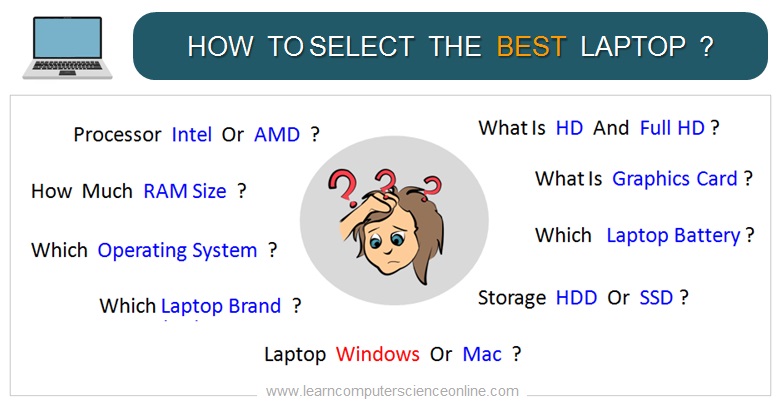
The best way to learn how to choose a laptop is to define what you will do with it. A laptop for email and online classes needs far less power than one for video editing or gaming.
Write down your most common tasks before you compare models. This simple step keeps flashy features from distracting you.
Consider whether you will use the laptop for:
• Web browsing, email, and video calls
• Microsoft Office, Google Workspace, or school work
• Programming and software development
• Photo editing and graphic design
• Video editing and content creation
• Gaming
• Business travel and remote work
• Streaming movies and music
• Advanced tasks such as 3D design, engineering, or data analysis
Think about your typical day. If you carry the laptop from room to room or commute with it, weight and battery life matter more. If it stays on a desk, a larger screen and stronger performance may be a better trade.
A useful rule is to buy for your real workload, not your imagined workload. Many people purchase a powerful gaming laptop for basic browsing, then regret its weight, noise, and short battery life.
Set a Realistic Laptop Budget
Budget is one of the most important parts of how to choose a laptop. A clear price range helps you compare the right products and avoid paying for unnecessary upgrades.
Laptop prices vary widely in the United States. Basic models may work well for simple tasks, while premium laptops offer better screens, stronger materials, longer support, and faster components.
A general budget guide looks like this:
• Under $500: Best for web browsing, documents, streaming, and light school work. Look for at least 8GB of RAM and a solid-state drive.
• $500 to $900: A strong range for students, office users, and many home users. You can often find a modern processor, 8GB to 16GB of RAM, and 256GB to 512GB of storage.
• $900 to $1,500: Suitable for professionals, programmers, creators, and users who want better displays, build quality, and battery life.
• Above $1,500: Designed for demanding work, premium design, specialized hardware, high-end gaming, or professional content creation.
Remember to include the full cost. You may need a laptop sleeve, USB-C hub, external monitor, mouse, software, or extended warranty.
I have seen buyers spend nearly their full budget on a laptop and then discover they need another $100 for basic accessories. Leave some room for those extras.
Also check the upgrade options. A laptop with more RAM or storage may cost more today, but it can remain useful longer. Still, many modern thin laptops have memory soldered to the motherboard, so you cannot upgrade them later.
Choose the Right Processor
The processor, or CPU, acts like the laptop’s main brain. It handles instructions and affects app speed, multitasking, battery use, and heat.
When learning how to choose a laptop, do not judge a processor by its name alone. Look at its generation, core count, power class, and real performance.
Common processor families include:
• Intel Core and Core Ultra processors
• AMD Ryzen processors
• Apple silicon chips, such as the M-series
• Qualcomm Snapdragon processors for selected Windows laptops
For basic work, a modern entry-level Intel Core, AMD Ryzen 3, Apple M-series, or similar chip may be enough. For heavier multitasking, choose a midrange processor such as an Intel Core 5 or Core 7, AMD Ryzen 5 or Ryzen 7, or an equivalent Apple chip.
A faster processor helps with:
• Large spreadsheets
• Many browser tabs
• Software development
• Photo and video editing
• Virtual machines
• 3D work
• Gaming when paired with a capable graphics processor
More cores can help with demanding workloads, but clock speed alone does not tell the whole story. Architecture, cooling, software support, and power limits also affect performance.
For most people, a recent midrange processor offers the best balance. You usually do not need the most expensive CPU for documents, streaming, and video calls.

Decide How Much RAM You Need
RAM, or memory, helps your laptop keep active apps ready. More RAM allows smoother multitasking, but extra memory does not automatically make every task faster.
Here is a simple guide:
• 4GB: Avoid for most modern laptops. It can feel restrictive and slow.
• 8GB: Acceptable for basic browsing, office work, and school tasks.
• 16GB: The best choice for most users in 2025 and beyond. It supports multitasking, coding, creative apps, and longer use.
• 32GB or more: Useful for professional video editing, 3D design, virtual machines, large data sets, and advanced development work.
If you keep dozens of browser tabs open, use video calls, edit photos, and run office apps at the same time, 16GB is a safer choice.
One mistake I often see is choosing a laptop with a powerful processor but only 8GB of non-upgradable memory. That laptop may feel fine at first, but future software updates and heavier browser use can expose its limits.
Check whether the RAM is upgradeable before you buy. Manufacturer specifications, service manuals, and trusted reviews can help confirm this detail.
Select the Right Storage Type and Capacity
Storage holds your operating system, apps, documents, photos, videos, and games. Most new laptops use an SSD, or solid-state drive.
An SSD is much faster and quieter than an older hard disk drive. It helps the laptop start quickly and makes apps load faster.
Storage capacity depends on your files and habits:
• 128GB: Usually too small unless your needs are very limited.
• 256GB: Enough for light users who store files in the cloud.
• 512GB: A good starting point for most people.
• 1TB: Better for games, photos, videos, and large software libraries.
• 2TB or more: Useful for professional media work and large local archives.
When deciding how to choose a laptop, think about future space needs. A laptop can become frustrating when the drive stays nearly full. Operating systems also need free space for updates and temporary files.
Cloud storage can reduce local storage needs, but it depends on a reliable internet connection. For travel, video editing, or large game files, local storage remains important.
Check whether the laptop uses an NVMe SSD and whether the drive can be replaced. Some thin laptops have storage that cannot be upgraded.
Pick the Best Display
You look at the laptop screen every time you use the device. Display quality can affect comfort, productivity, entertainment, and creative accuracy.
Screen size is usually measured diagonally:
• 13 to 14 inches: Portable and convenient for travel.
• 15 to 16 inches: A strong balance for work, school, and entertainment.
• 17 inches or more: Better for desk use, gaming, and detailed creative work.
Resolution also matters. Full HD, often listed as 1920 by 1080, is still suitable for many laptops. Higher resolutions can provide sharper text and images, but they may use more battery and cost more.
Pay attention to panel type:
• IPS panels usually offer good color and viewing angles.
• OLED panels deliver deep blacks and strong contrast, but may cost more and use more power in some situations.
• TN panels are often cheaper but may have weaker colors and viewing angles.
Brightness is important if you work near windows or outdoors. A brighter screen is easier to see in strong light. A matte display can also reduce reflections.
For smooth motion, consider the refresh rate. A 60Hz screen is fine for office work. Gaming laptops may offer 120Hz, 144Hz, or higher refresh rates.
Creators should check color coverage and accuracy. A screen with wide color support is helpful, but professional work may still require calibration.
Consider Graphics Performance
The graphics processor, or GPU, creates images, videos, games, and visual effects. Some laptops use integrated graphics built into the processor. Others include a separate dedicated GPU.
Integrated graphics are usually enough for:
• Office apps
• Web browsing
• Streaming
• Basic photo editing
• Casual games
• Many school and business tasks
A dedicated GPU is useful for:
• Modern PC games
• 3D modeling
• Video editing
• Motion graphics
• Computer-aided design
• Machine learning experiments
Dedicated graphics can improve performance, but they often add weight, heat, noise, and cost. They may also reduce battery life.
When deciding how to choose a laptop for gaming, focus on the GPU first, then check cooling, screen refresh rate, RAM, and storage. A fast processor cannot fully compensate for a weak graphics card.
For video editing, also check software support. Some applications perform especially well with certain hardware encoders and graphics technologies. Reviews that test your actual software are more useful than general benchmark scores.
Check Battery Life Carefully
Battery life is one of the hardest laptop features to compare. Manufacturers often test under controlled conditions that may not match your habits.
Real battery life depends on:
• Screen brightness
• Browser tabs and background apps
• Video calls
• Processor design
• Wireless connections
• Display resolution and refresh rate
• Battery capacity
• Operating system settings
A laptop rated for 15 hours may provide much less during video editing or gaming. Read independent reviews that test web browsing, video playback, and mixed use.
If you travel often, look for a laptop that can last through several hours of real work. Fast charging is also helpful when you have only a short time near an outlet.
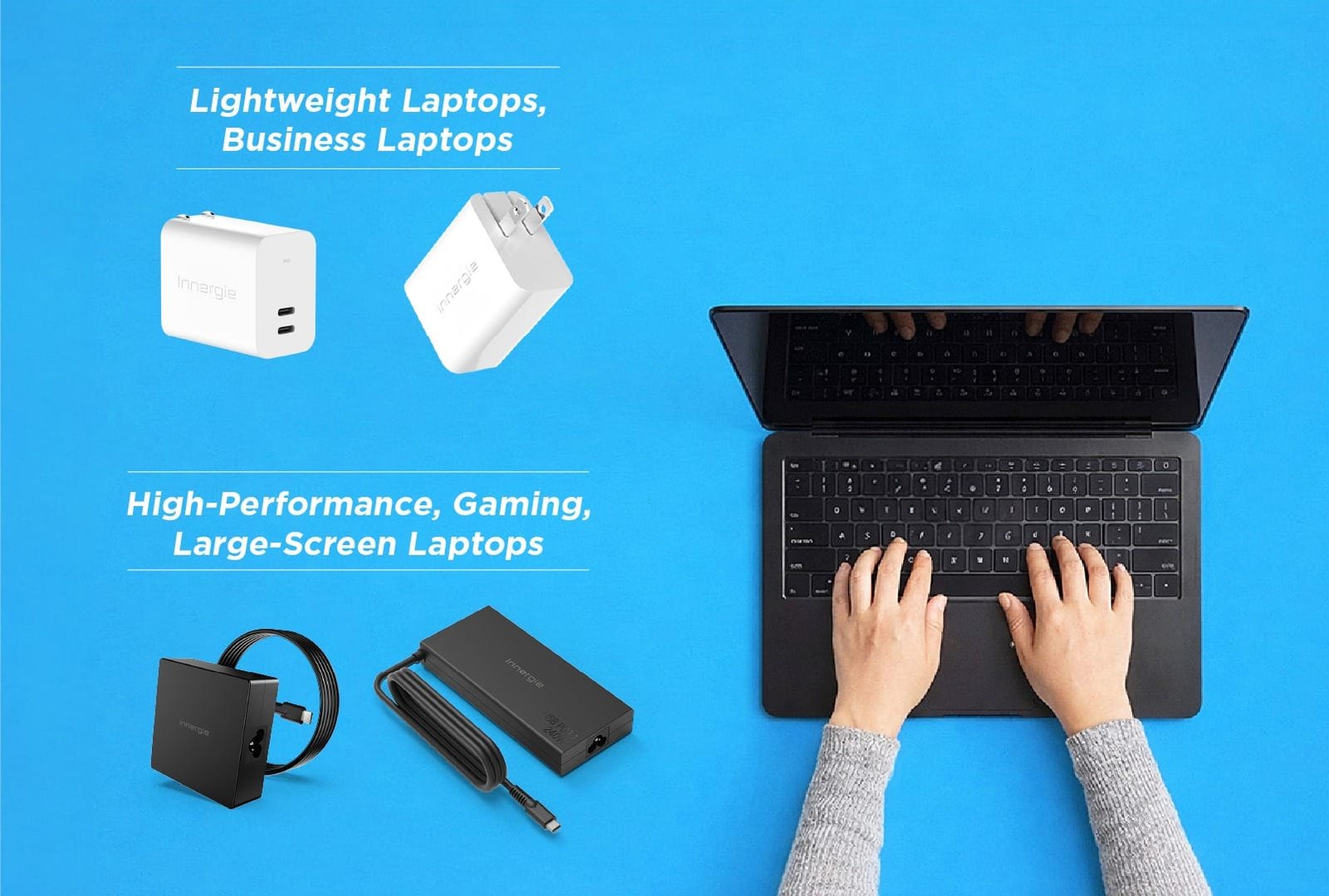
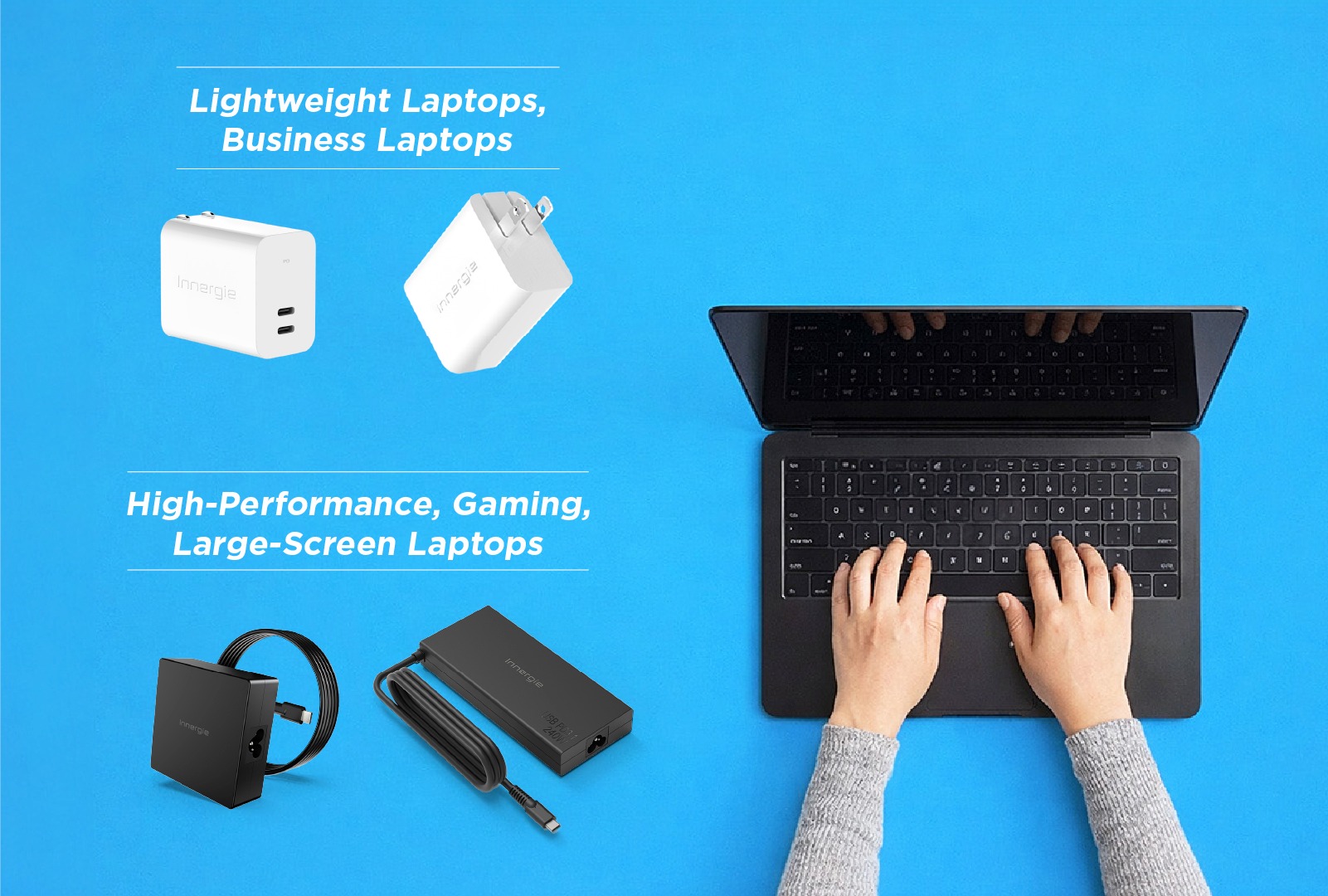
USB-C charging can make travel easier because you may use one charger for your laptop, phone, and other devices. However, confirm the required wattage before buying a replacement charger.
Thin laptops with efficient processors often offer better battery life than powerful gaming systems. That is a trade-off, not a defect.
Choose Windows, macOS, or ChromeOS
The operating system affects available software, device support, security, and how the laptop fits into your daily life.
Windows offers broad hardware choice and strong support for business software, games, engineering tools, and accessories. It is often the most flexible option for mixed use.
macOS provides close integration with Apple devices and is popular with many creative professionals. Apple silicon laptops are known for strong performance and efficient battery use. However, some Windows-only programs and games may not run natively.
ChromeOS works well for web apps, school platforms, email, documents, and simple daily tasks. Chromebooks are often affordable and easy to manage, but they may not support full desktop versions of specialized software.
Before choosing, check the software you need. Ask these questions:
• Does my school or employer require Windows?
• Will my printer, scanner, or accessories work with this system?
• Do I need professional Adobe, engineering, accounting, or development tools?
• Do I rely on games that support only one operating system?
• Do I already use an iPhone, Android phone, or other connected devices?
The best operating system is the one that supports your work with the fewest compromises.
Evaluate Keyboard, Touchpad, and Build Quality
Specifications cannot tell you how comfortable a laptop feels. The keyboard, touchpad, hinge, palm rest, and chassis affect your daily experience.
Look for a keyboard with clear key travel, a useful layout, and reliable backlighting. If you write for hours, a comfortable keyboard may matter more than a small speed increase.
A good touchpad should track smoothly and recognize gestures. Windows Precision touchpads and Apple Force Touch trackpads generally provide a consistent experience, but the exact design still varies by model.
Build materials also affect weight and durability:
• Aluminum often feels strong and premium.
• Magnesium can reduce weight while maintaining rigidity.
• High-quality plastic can be durable and affordable.
• Poorly designed plastic may flex or develop worn hinges.
Check the hinge in person when possible. A screen that wobbles during typing can become annoying very quickly.
I once recommended a lightweight laptop that looked perfect on paper. After extended use, the shallow keyboard and small touchpad became the main complaints. That experience reinforced a simple lesson: comfort is not a luxury when you use a laptop every day.
Review Ports and Wireless Features
Ports determine what you can connect without buying adapters. A thin laptop may look elegant, but limited ports can create extra cost and clutter.
Common ports include:
• USB-A for older accessories
• USB-C for charging, data, and displays
• Thunderbolt or USB4 for fast connections
• HDMI for external monitors and TVs
• An SD or microSD card reader
• A headphone jack
Also check wireless support. Wi-Fi 6 or newer can improve performance on compatible networks. Bluetooth is useful for headphones, mice, keyboards, and other accessories.
USB-C does not always mean the same thing. One port may support charging and display output, while another may support only basic data. Read the detailed specifications instead of assuming every USB-C port has identical features.
If you use two monitors, an external graphics device, or fast storage, confirm that the laptop supports your planned setup before buying.
Think About Webcam, Microphone, and Speakers
Remote work, online classes, and video calls make audio and camera quality important. A laptop with a poor webcam can make professional meetings feel less polished.
Look for:
• A 1080p webcam when possible
• Clear microphones with noise reduction
• Speakers that face upward or toward you
• A physical camera shutter for privacy
• Reliable Wi-Fi
Camera quality depends on more than resolution. Sensor size, lighting, software processing, and microphone placement also matter.
If you work from home, a headset or external webcam may still provide better results. But a good built-in camera makes quick calls easier.
Privacy features deserve attention. A physical shutter gives visible protection, while operating system permissions help control which apps can access the camera and microphone.
Compare Warranty, Repairability, and Support
A laptop is a major purchase, so after-sales support matters. Check the standard warranty, repair process, accidental damage coverage, and return period.
Research the manufacturer’s support reputation. Look for clear driver updates, accessible manuals, and reasonable repair options.
Repairability is also worth considering. A laptop with replaceable storage, memory, battery, or keyboard may be easier to maintain. Independent repair scores can offer useful information, but they do not always reflect every model or region.
Before buying, confirm:
• How long the warranty lasts
• Whether the warranty covers battery wear
• Where repairs take place
• Whether replacement parts are available
• How much accidental damage coverage costs
• Whether you can return the laptop after testing it
Security updates are important too. Chromebooks, Windows laptops, and Macs have different support policies. A longer support period can improve value and reduce security risk.
No laptop lasts forever, but a well-supported model can remain useful for many more years.
Use Reviews and Benchmarks Wisely
Reviews can help you understand how a laptop behaves outside a store. Look for tests of battery life, heat, fan noise, screen quality, keyboard comfort, and sustained performance.
Benchmarks are useful for comparing similar products, but they are not the whole story. A laptop may score well in a short test and slow down during long workloads because of heat.
Prioritize reviews that:
• Test the exact model number
• Measure real battery life
• Check display brightness and color
• Test keyboard and touchpad quality
• Report fan noise and surface temperature
• Explain upgrade limits
• Compare performance while plugged in and on battery
Avoid relying on a single review. Manufacturing changes, regional configurations, and firmware updates can affect results.
When learning how to choose a laptop, use benchmarks as clues rather than final answers. Your software, comfort needs, and work habits should guide the decision.
Avoid Common Laptop Buying Mistakes
Even careful buyers can overlook small details. These common mistakes can lead to poor value.
• Buying based only on the brand: A respected brand can still sell weak models.
• Choosing the cheapest option: Low prices may mean limited RAM, slow storage, or poor screens.
• Ignoring the screen: A dim display can harm comfort and productivity.
• Assuming all USB-C ports are equal: Port features vary widely.
• Buying too much power: Gaming hardware can be wasteful for simple tasks.
• Forgetting weight: A large charger can make a lightweight laptop less portable.
• Ignoring the keyboard: Comfort matters during long work sessions.
• Skipping return policies: A laptop may look good online but feel uncomfortable in person.
• Choosing too little storage: Cloud services do not replace all local space.
• Assuming upgrades are possible: Many thin laptops cannot be upgraded.
A short checklist can prevent most errors. Match the laptop to your tasks, confirm the key specifications, read independent reviews, and test the return policy.
Follow a Simple Laptop Buying Process
If you still feel unsure about how to choose a laptop, use this step-by-step process.
List your main tasks and the apps you use.
Set a total budget, including accessories.
Choose the operating system that supports your software.
Select a processor suitable for your workload.
Aim for at least 8GB of RAM, with 16GB preferred for most users.
Choose an SSD with at least 256GB, or 512GB for better long-term comfort.
Pick a screen size based on portability and work space.
Check battery tests from independent reviewers.
Confirm ports, webcam quality, keyboard comfort, and wireless support.
Review warranty, repair options, and return terms.
Compare two or three exact models rather than entire product families.
Buy from a seller with clear support and returns.
This method turns a confusing search into a short list. You do not need to understand every technical term. You only need to identify the features that affect your daily use.
Laptop Recommendations by User Type
Different users need different features. These examples can help you apply how to choose a laptop to real situations.
Students
Students often need portability, battery life, a comfortable keyboard, and reliable video-call hardware. A 13- to 15-inch laptop with 8GB or 16GB of RAM and a 256GB or 512GB SSD is a practical target.
Office workers
Office users should focus on keyboard comfort, webcam quality, screen brightness, battery life, and business support. A midrange processor and 16GB of RAM can provide smooth multitasking.
Travelers
Travelers benefit from a light chassis, strong battery life, USB-C charging, and a durable hinge. A 13- or 14-inch display often offers the best balance.
Creators
Creators should examine the display’s color quality, processor, RAM, storage, and GPU. Video editors may also want an SD card reader and a larger screen.
Gamers
Gamers need a dedicated GPU, fast refresh-rate display, strong cooling, adequate RAM, and enough storage for large games. Gaming laptops are often heavier and louder than general-purpose models.
Programmers
Programmers should consider keyboard quality, screen resolution, RAM, processor performance, operating system support, and battery life. Developers using virtual machines or containers may benefit from 32GB of RAM.
Frequently Asked Questions About How to Choose a Laptop
How much RAM should a laptop have?
Most buyers should choose 16GB of RAM for a comfortable long-term experience. Eight gigabytes can work for basic tasks, while 32GB or more suits demanding creative, technical, and professional workloads.
Is an SSD better than a hard drive?
Yes, an SSD is much faster, quieter, and more resistant to movement than a traditional hard drive. It helps your laptop start and load applications quickly.
What is the best laptop size?
A 13- or 14-inch laptop is usually best for portability, while a 15- or 16-inch model offers more screen space. Your work area, travel habits, and comfort should guide the choice.
Is 8GB of RAM enough for a laptop?
Eight gigabytes is enough for basic browsing, documents, streaming, and light school work. Choose 16GB if you multitask often or want the laptop to remain comfortable for several years.
Should I buy a Windows laptop or a MacBook?
Choose Windows if you need broad hardware choice, gaming, or Windows-only software. Choose a MacBook if you prefer macOS, use Apple devices, and your required apps support it.
How long should a laptop last?
A well-built laptop can remain useful for about four to seven years, depending on its components, care, software demands, and repair options. Buying adequate RAM, storage, and processor power can extend its useful life.
Are expensive laptops always better?
No. Expensive laptops may offer better materials, screens, support, and performance, but those benefits matter only if they match your needs. A less expensive laptop can be the better choice for simple daily tasks.
Conclusion
Knowing how to choose a laptop becomes easier when you focus on your real work first. Set a budget, choose the right operating system, and compare the processor, RAM, SSD, display, battery, ports, comfort, and support.
For most people, a modern midrange laptop with 16GB of RAM, a 512GB SSD, a bright Full HD or better display, and dependable battery life is a strong starting point. Take time to compare exact models, read hands-on reviews, and check the return policy before you buy.
Use this guide as your checklist, then explore trusted reviews and current deals to find a laptop that fits your life—not just your shopping cart.