
Clear clutter, remove malware, update software, and upgrade hardware to restore speed.
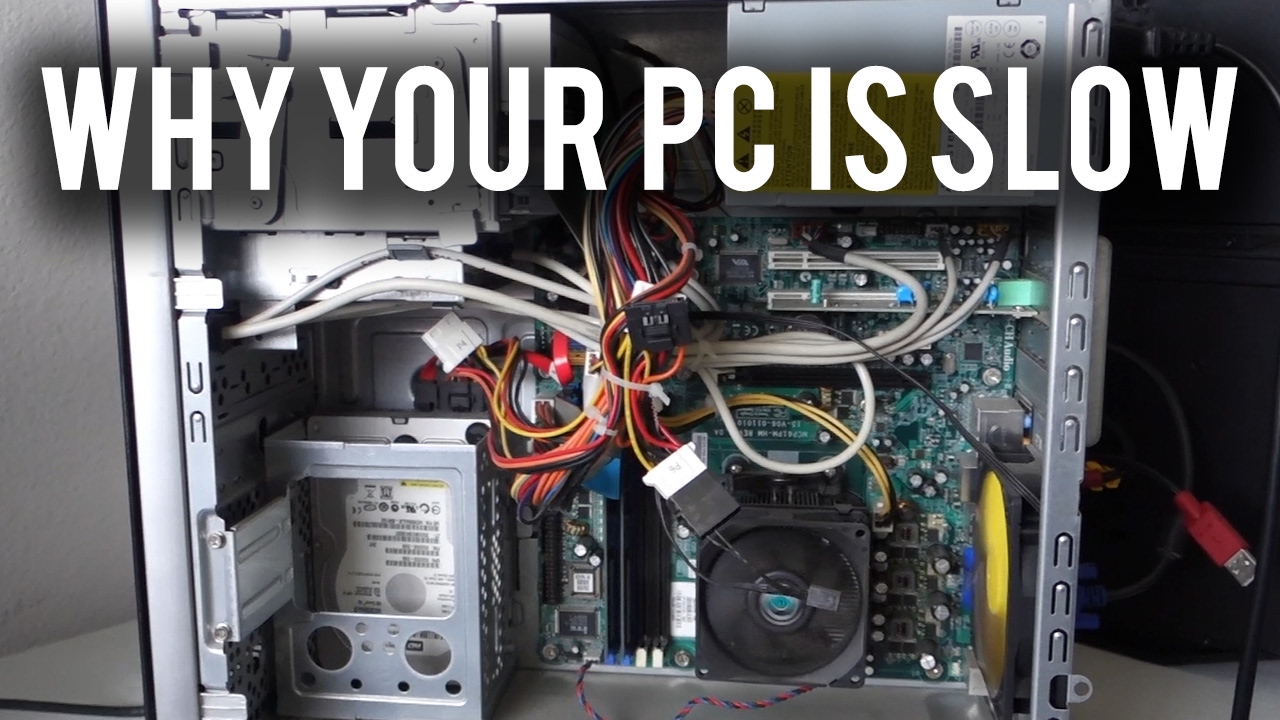
A slow computer can make simple tasks feel like a long line at the checkout. The cause may be too many startup apps, low storage, malware, aging hardware, or a system update that went wrong. This guide explains how to fix a slow computer with safe steps that work on Windows and macOS. You will learn how to find the real problem, improve speed, and know when an upgrade is the better choice.
Find out why your computer is slow
Before changing settings, watch how your computer behaves. A machine that takes a long time to start has a different problem from one that slows down only during video calls or gaming.
Open your system monitor and check which resources are busy:
- Windows: Press Ctrl + Shift + Esc to open Task Manager.
- macOS: Open Applications, then Utilities, then Activity Monitor.
- Look at CPU, memory, disk, and network use.
- Note which apps stay near the top for several minutes.
- Check whether your storage drive is almost full.
High CPU use often comes from a demanding app, background task, or malware. High memory use means the computer may not have enough RAM for your normal workload. High disk use can point to updates, indexing, a failing drive, or too many background processes.
In my own troubleshooting work, I have seen people replace a computer when one browser tab or cloud sync app was using most of the available memory. Checking the system monitor first can prevent an expensive mistake.
Restart your computer
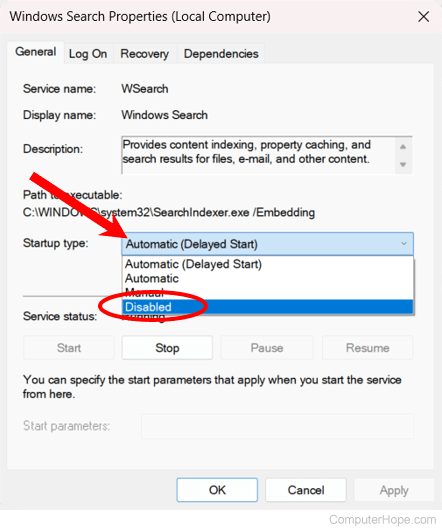
A restart is simple, but it can solve more problems than many people expect. It clears temporary memory, closes stuck processes, and allows pending updates to finish.
Choose Restart rather than Shut down when possible. On some systems, fast startup features can save part of the previous session instead of giving the computer a completely fresh start.
Restart your computer when:
- Apps stop responding.
- The system feels slow after many days of use.
- The fan runs when no demanding app is open.
- A recent update has not fully installed.
- Your internet or Bluetooth connection behaves oddly.
Do not treat restarting as a permanent fix. If the computer becomes slow again within minutes, continue with the steps below. Repeated slowdowns usually point to a deeper cause.

Remove unnecessary startup apps
Startup apps launch when you sign in. Some are useful, but many run in the background without helping you. A long list of startup programs can delay boot time and consume memory.
On Windows:
- Open Task Manager.
- Select Startup apps.
- Review the listed programs.
- Disable apps you do not need at startup.
- Keep security software and important hardware tools enabled.
On macOS:
- Open System Settings.
- Select General.
- Choose Login Items.
- Remove apps that do not need to open automatically.
- Review background permissions as well.
Do not disable a program if you do not know what it does. Search its publisher and purpose first. Avoid turning off drivers, security tools, or system services without reliable information.
For example, a music app does not need to open every time you start your computer. You can launch it when needed. This small change often improves startup speed and reduces memory use.
Free up storage space
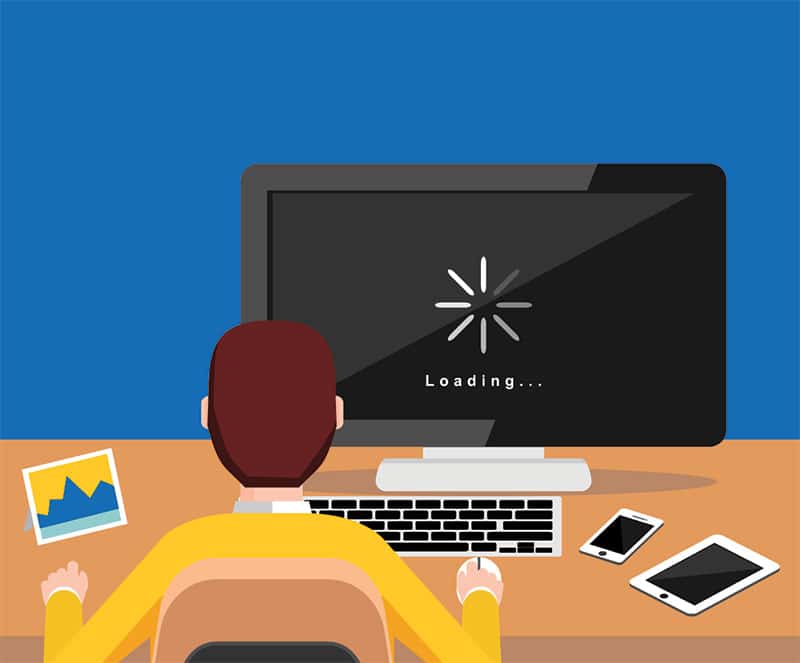
A nearly full drive can make a computer sluggish. The operating system needs free space for temporary files, updates, virtual memory, and app data.
Try to keep at least 15% to 20% of the main drive free when possible. This is not a strict rule for every computer, but it gives the system room to work.
To free space safely:
- Empty the Recycle Bin or Trash.
- Remove old downloads.
- Delete large videos you no longer need.
- Uninstall unused programs.
- Clear temporary files with the built-in storage tool.
- Move photos and documents to an external drive or trusted cloud service.
- Remove old device backups after checking that newer copies exist.
Windows includes Storage Sense, which can remove temporary files automatically. macOS provides storage recommendations in System Settings under General and Storage.
Be careful with third-party “cleaner” apps. Some remove useful files, show misleading warnings, or create new background processes. Built-in tools are usually safer for routine cleanup.

Uninstall programs you do not use
Unused software can take up space, run background services, and add startup entries. Removing it is one practical way to fix a slow computer.
Open your installed apps list and sort programs by size or install date. Remove trial software, old games, duplicate media tools, and apps you no longer recognize.
Use the normal uninstall process:
- Windows: Open Settings, Apps, and Installed apps.
- macOS: Remove supported apps from the Applications folder, then follow the developer’s uninstall instructions if provided.
- Restart after removing large or complex programs.
Do not delete random folders from Program Files, the Windows folder, or system directories. Manual deletion can leave broken services and may damage the operating system.
One common mistake is removing an app but keeping its large data folder. Some apps store caches, downloads, or project files elsewhere. Check the app’s own settings before deleting related data.
Update the operating system and drivers
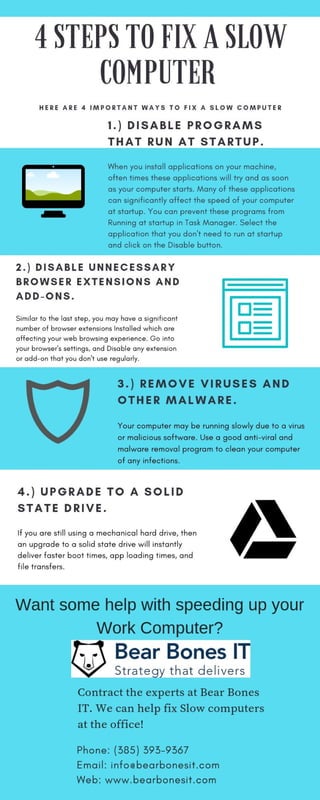
Updates can fix bugs, improve security, and solve performance problems. They may also improve compatibility with newer apps and hardware.
Install updates from the computer’s built-in settings:
- Windows: Settings, Windows Update.
- macOS: System Settings, General, Software Update.
- Graphics drivers: Use the computer maker or graphics card maker’s official tool.
Create a backup before a major operating system upgrade. Keep the computer connected to power, and do not force it to shut down during installation.
Drivers need more care. A newer driver can improve performance, but an incorrect driver can cause crashes or display problems. Avoid driver download sites that use aggressive pop-ups or promise to update every driver instantly.
If the slowdown began directly after an update, check for a newer patch. You can also use the system’s recovery or rollback option when available.

Scan for malware and unwanted software
Malware can use your processor, memory, storage, and internet connection. It may also cause pop-ups, browser changes, crashes, or unusual account activity.
Run a full scan with the security software built into your operating system. Keep its definitions and engine updated. A second opinion from a reputable on-demand scanner can help if symptoms continue.
Warning signs include:
- A homepage or search engine changes without permission.
- New extensions appear in your browser.
- Ads open when no browser is running.
- Unknown apps start with the computer.
- The fan runs constantly during light use.
- Files become encrypted or renamed.
- Your accounts show suspicious sign-ins.
Never install a “speed booster” because a pop-up claims your computer is infected. Close the browser, then run a scan from a trusted security tool.
If you suspect ransomware or serious malware, disconnect the computer from the network and seek professional help. Do not enter passwords on the affected machine until it is secure.
Manage browser tabs and extensions
A browser can become the main reason a computer slows down. Each tab uses memory, and some websites run scripts that use considerable CPU power.
Start with these steps:
- Close tabs you no longer need.
- Bookmark pages for later.
- Remove extensions you do not use.
- Keep only a few tabs open during video calls.
- Clear a large browser cache if pages load incorrectly.
- Update the browser from its official settings.
Extensions can be especially demanding. Shopping tools, coupon finders, screen recorders, and media downloaders may run on many pages at once.
Use the browser’s built-in task manager when available. In Google Chrome and Microsoft Edge, Shift + Esc can show which tabs and extensions use the most memory. This makes it easier to find the problem instead of closing everything blindly.
Reduce visual effects and background activity
Animations and transparency use some system resources. On a newer computer, the effect is small. On an older computer with limited RAM, reducing visual effects can make the interface feel more responsive.
Windows users can search for “Adjust the appearance and performance of Windows” and select settings that favor performance. macOS users can reduce transparency and motion in Accessibility settings.
You can also limit background activity:
- Turn off apps that do not need permission to run in the background.
- Pause cloud syncing while using demanding software.
- Stop unused game launchers from opening at startup.
- Close chat apps when you are not using them.
- Schedule large backups for times when you are away.
These steps do not increase the computer’s actual processing power. They reduce the work happening at the same time, which can make daily tasks feel faster.

Check for overheating
Heat can cause a computer to slow down. Modern processors often reduce their speed when temperatures rise to protect the hardware. This process is called thermal throttling.
Keep air vents clear. Use a laptop on a hard, flat surface rather than a bed or soft blanket. Dust the vents with proper compressed air, and avoid blocking the intake area.
Signs of overheating include:
- The fan becomes loud during simple tasks.
- The computer slows after several minutes.
- The system shuts down without warning.
- The case feels unusually hot.
- Performance improves after the computer cools.
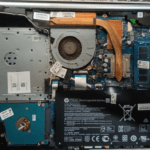
Do not open a laptop unless you understand its design and warranty terms. A repair shop can clean the cooling system and replace thermal paste when needed. Never spray liquid or household vacuum air directly into sensitive components.
Test the hard drive or solid-state drive
Storage hardware affects startup time, app loading, and file access. Older hard disk drives are much slower than solid-state drives, especially when the computer runs many programs at once.
A failing drive may cause:
- Slow file opening.
- Frequent freezing.
- Clicking sounds from a hard disk drive.
- Missing or corrupted files.
- Blue screen errors or unexpected restarts.
- Very high disk use with little visible activity.
Back up important files immediately if you notice these signs. Use the manufacturer’s diagnostic tool or the operating system’s drive health feature to check the disk.
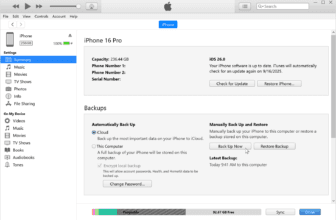
Do not rely on a drive until your important data exists in a second location. A backup is not complete if it is stored only on the computer that may fail.
Replacing a hard disk drive with a solid-state drive is often one of the biggest hardware improvements for an older computer. The exact benefit depends on the computer, operating system, and drive connection.
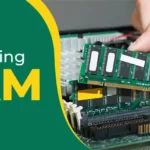
Check whether you need more RAM
RAM is short-term working space. Think of it as a desk. If the desk is full, you must keep moving items in and out of drawers. A computer with too little RAM does the same with storage, and that process is slower.
You may need more RAM if:
- The computer slows when many tabs are open.
- Memory use stays above 80% during normal work.
- Apps reload when you switch between them.
- The system uses virtual memory often.
- Video editing, design, or gaming causes stuttering.
Close unused apps before buying an upgrade. If the problem remains, check whether your computer supports more RAM and whether the memory is replaceable.
Many modern laptops have memory soldered to the motherboard. In that case, you may need to use fewer apps, choose lighter software, or replace the computer when its workload grows.
Use a clean boot to find software conflicts
A clean boot starts the system with a limited set of services and startup programs. It can reveal whether third-party software is causing the slowdown.
This method is useful when the computer becomes slow after installing:
- Security software.
- A driver.
- A printer utility.
- A game launcher.
- A system tool.
- A browser extension or synchronization app.
Search the official support instructions for your operating system before changing services. Record each change, and re-enable items in groups. This makes it easier to identify the service that causes trouble.
Do not disable all security services for everyday use. A clean boot is a temporary diagnostic step, not a permanent setup.
Reset or reinstall the operating system
If software problems continue after cleanup, a reset may help. This removes damaged settings, unwanted programs, and some persistent conflicts.
Before resetting:
- Back up documents, photos, passwords, and browser data.
- Confirm that you can reinstall paid software.
- Save license keys and recovery codes.
- Make sure you know your account passwords.
- Connect the computer to power.
- Choose the reset option that matches your needs.
A full clean installation gives the system the freshest start, but it takes more time. It also removes apps and personal files if you choose the wrong option.
A reset will not fix a failing drive, overheating, defective RAM, or weak hardware. If the computer remains slow after a clean installation with few apps, suspect a hardware limit.
Decide whether a hardware upgrade is worthwhile
Software cleanup can help, but every computer has a limit. If your device has an old processor, a mechanical hard drive, low RAM, or poor cooling, upgrades may offer better results.
Consider these options:
- Replace a hard disk drive with a solid-state drive.
- Increase RAM if the computer supports it.
- Clean or repair the cooling system.
- Use a newer graphics card for demanding visual tasks.
- Replace an aging battery if power limits performance.
- Buy a new computer when the hardware is not upgradeable.
Match the upgrade to the problem. More RAM will not solve a failing drive. A new SSD will not make a weak processor ideal for modern 3D games.
In one case, moving a user’s system from a hard disk drive to a solid-state drive made startup and app loading feel dramatically faster. The computer was still old, but the right upgrade removed its biggest bottleneck.
Prevent your computer from slowing down again
Once you fix a slow computer, a few habits can help keep it responsive. Prevention is less stressful than trying to recover a system after years of clutter.
Follow a simple maintenance routine:
- Restart the computer at least once a week.
- Keep the operating system and main apps updated.
- Review startup apps every few months.
- Keep free storage space available.
- Remove programs you no longer use.
- Back up important files.
- Scan for malware.
- Clean vents and fans carefully.
- Avoid unknown downloads and fake warning messages.
Do not install several security suites or system cleaners at the same time. They can compete for resources and create more problems than they solve.
The best maintenance plan is boring and regular. A few minutes each month can prevent hours of troubleshooting later.
Frequently Asked Questions About How to Fix a Slow Computer
Why is my computer suddenly slow?
A sudden slowdown may come from an update, malware, a full drive, overheating, or a program using too many resources. Check Task Manager or Activity Monitor to see which resource is under the most strain.
How do I fix a slow computer without buying anything?
Restart the computer, remove unused startup apps, free storage space, uninstall unwanted programs, update the system, and scan for malware. These steps often improve performance without any cost.
Does deleting files make a computer faster?
Deleting unnecessary files can help when the drive is nearly full. It will not greatly improve speed if the main issue is low RAM, overheating, malware, or an aging processor.
Will more RAM fix a slow computer?
More RAM can help when the system slows during multitasking and memory use stays high. It will not fix a failing drive, malware, overheating, or a processor that cannot handle the workload.
Is an SSD better than a hard disk drive?
An SSD is usually much faster for starting the operating system, opening apps, and accessing files. It has no moving parts, but you should still keep backups because SSDs can fail.
Can a virus make my computer slow?
Yes. Malware can use system resources, run hidden processes, change browser settings, and create network activity. Run a full scan with trusted security software and seek help if suspicious behavior continues.
Conclusion
Learning how to fix a slow computer starts with finding the bottleneck instead of guessing. Check system usage, restart the device, manage startup apps, free storage, remove malware, update software, and control heat. If the computer still struggles, test the drive, review RAM, and consider an SSD or other suitable upgrade.
Start with the safest free steps today, then make one change at a time so you can see what works. If this guide helped, explore more computer maintenance resources or share your experience in the comments.