
Installing laptop memory is a simple upgrade when you match the right RAM and follow safe steps.
Learning how to install memory in laptop computers can save money, improve multitasking, and extend the useful life of an older device. The process usually takes less than 30 minutes, but compatibility and careful handling matter more than speed. This guide explains how to choose laptop RAM, install it safely, test the upgrade, and avoid common mistakes.
What laptop memory does
Laptop memory, often called RAM, is the short-term workspace your computer uses while programs are running. It helps your laptop keep more browser tabs, apps, and files open at the same time.
RAM is different from storage. An SSD or hard drive stores your files even when the laptop is off. RAM holds active data only while the laptop is powered on. Think of storage as a filing cabinet and RAM as the desk where you work.
More memory can help when your laptop feels slow during:
• Web browsing with many open tabs
• Video calls and office work
• Photo or video editing
• Programming and virtual machines
• Light gaming
• Switching between several large programs
Adding RAM will not fix every performance problem. A failing drive, weak processor, overheating, malware, or too many startup apps can also cause slow performance.
Check whether your laptop supports a memory upgrade
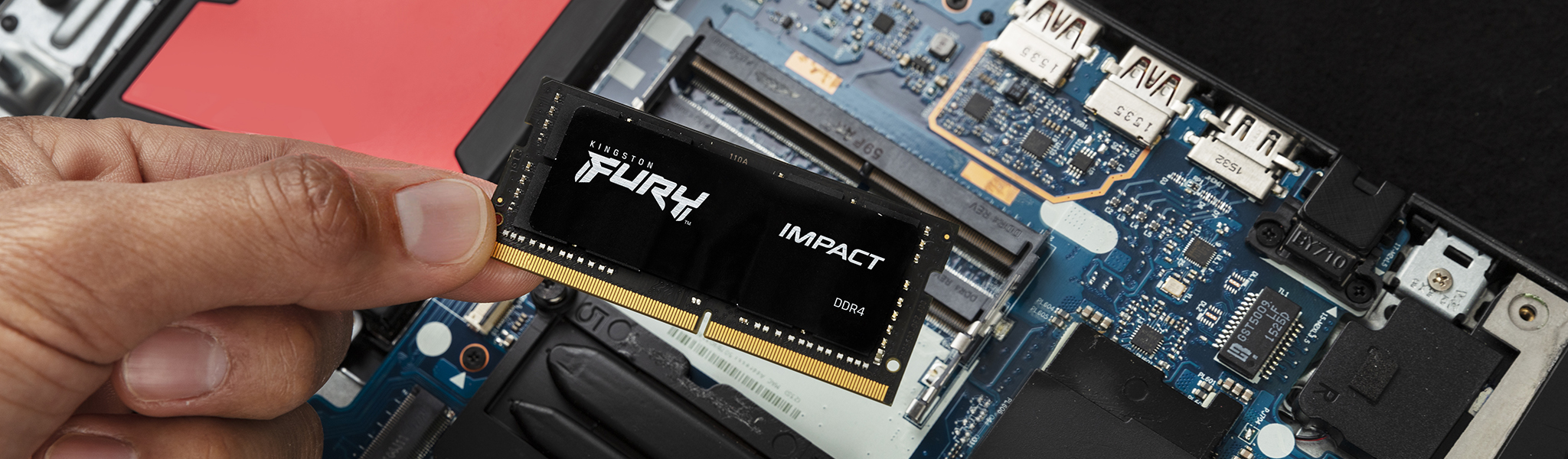
Before learning how to install memory in laptop systems, confirm that your laptop can accept more RAM. Some laptops have removable memory slots, while others use memory chips soldered directly to the motherboard.
Check these details first:
• Maximum supported memory
• Number of available memory slots
• Current memory amount
• Memory type, such as DDR4 or DDR5
• Memory speed
• Module format, usually SO-DIMM
• Whether the laptop uses soldered, removable, or mixed memory
The most reliable places to check are the laptop manufacturer’s service manual, support page, or official technical specifications. You can also use a trusted system information tool to see the current memory type and speed.
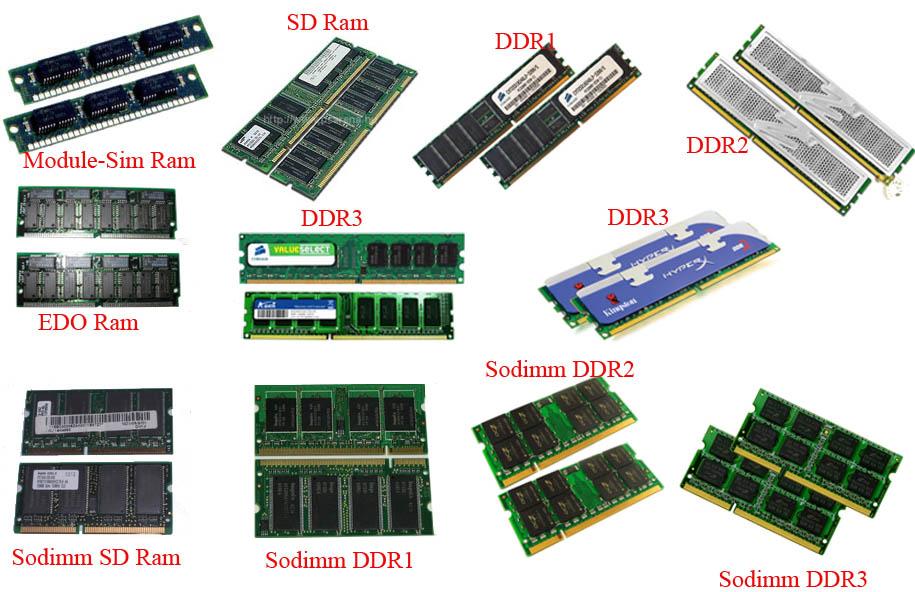
Do not assume that a newer RAM module will work because it physically fits. DDR3, DDR4, and DDR5 modules use different electrical standards and notch positions. A DDR4 module cannot be installed in a DDR5 slot.
Check your current memory in Windows
In Windows 11 or Windows 10:
- Press Ctrl + Shift + Esc to open Task Manager.
- Select the Performance tab.
- Choose Memory.
- Check the total RAM, speed, and number of slots used.
For more detail, open System Information and review the installed physical memory. Third-party tools can show additional information, but download them only from reputable sources.
Check your current memory on a Mac
Many modern MacBook models use memory that is soldered to the logic board. These models cannot be upgraded with a normal SO-DIMM module.
To check your Mac:
- Select the Apple menu.
- Choose About This Mac.
- Review the memory information.
- Search the exact model number in Apple’s technical specifications.
Older Intel-based MacBook models may have upgradeable RAM, but the supported type and maximum capacity vary by model.

Choose the correct laptop RAM
Choosing the right module is the most important part of how to install memory in laptop computers. A module that looks similar may still be incompatible.
Look for these specifications:
Memory type
Laptop memory is usually called SO-DIMM, which is smaller than desktop DIMM memory. Never buy full-size desktop RAM for a laptop.
The generation must also match your laptop:
• DDR3 works only with compatible DDR3 systems
• DDR4 works only with compatible DDR4 systems
• DDR5 works only with compatible DDR5 systems
These generations are not interchangeable.
Capacity
Common laptop memory sizes include 4 GB, 8 GB, 16 GB, and 32 GB per module. The best choice depends on your laptop’s maximum supported capacity and your daily workload.
As a general guide:
• 8 GB suits basic browsing and office work
• 16 GB suits most modern users
• 32 GB helps with editing, development, and heavy multitasking
• More than 32 GB is useful for specialized workstations and demanding virtual machines
Capacity alone does not guarantee better performance. If your laptop has a slow processor or an old hard drive, adding RAM may provide only a modest improvement.
Speed and voltage
Laptop RAM has a rated speed, such as 2666 MT/s or 3200 MT/s. The laptop may run the module at a lower speed if that is what its memory controller supports.
Use the voltage and timing requirements listed by the laptop manufacturer. Most modern modules manage settings automatically, but matching the existing module as closely as possible can reduce compatibility problems.
Matching memory modules
If your laptop has two slots, matched modules can allow dual-channel operation. This may improve memory bandwidth, especially on systems that use integrated graphics.
For example, two 8 GB modules often work better than one 16 GB module when the laptop supports dual-channel memory. However, capacity and compatibility come first. A single compatible module is better than two mismatched modules that cause errors.
Prepare before installing laptop memory
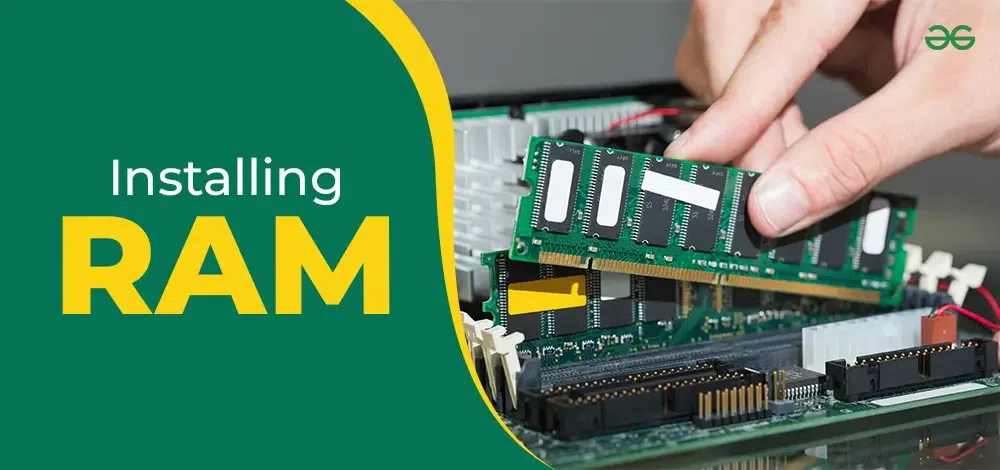
Good preparation makes how to install memory in laptop work safer and easier. Set aside about 20 to 30 minutes and work on a clean, well-lit table.
You may need:
• The correct SO-DIMM memory module
• A small Phillips screwdriver
• A small flat tool for opening clips, if required
• An anti-static wrist strap
• A soft container for screws
• The laptop service manual
Before opening the laptop, back up important files. RAM installation does not normally affect stored data, but any hardware repair carries a small risk. A current backup protects you from unexpected problems.
Shut down the operating system completely. Do not use sleep mode or hibernation. Disconnect the charger and remove all accessories, including USB drives and memory cards.
If the battery is removable, take it out. If it is internal, use the service manual to learn whether the battery connector should be disconnected after opening the bottom cover.
Static electricity is another concern. Touch a grounded metal object before handling the module, or wear an anti-static wrist strap. Hold RAM by its edges and avoid touching the gold contacts.

How to install memory in laptop computers
The exact case design differs by brand, but the general process is similar. Do not force any part. Laptop covers and connectors can break when pried at the wrong point.
Shut down the laptop and unplug it.
Place the laptop upside down on a soft, clean surface. A folded cotton cloth can help prevent scratches.
Remove the bottom-cover screws. Keep each screw in order because some laptops use different screw lengths.
Use a plastic opening tool to release the bottom cover. Start near a seam and gently work around the edges.
Disconnect the internal battery if the manufacturer’s instructions require it. This reduces the chance of an electrical short.
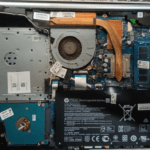
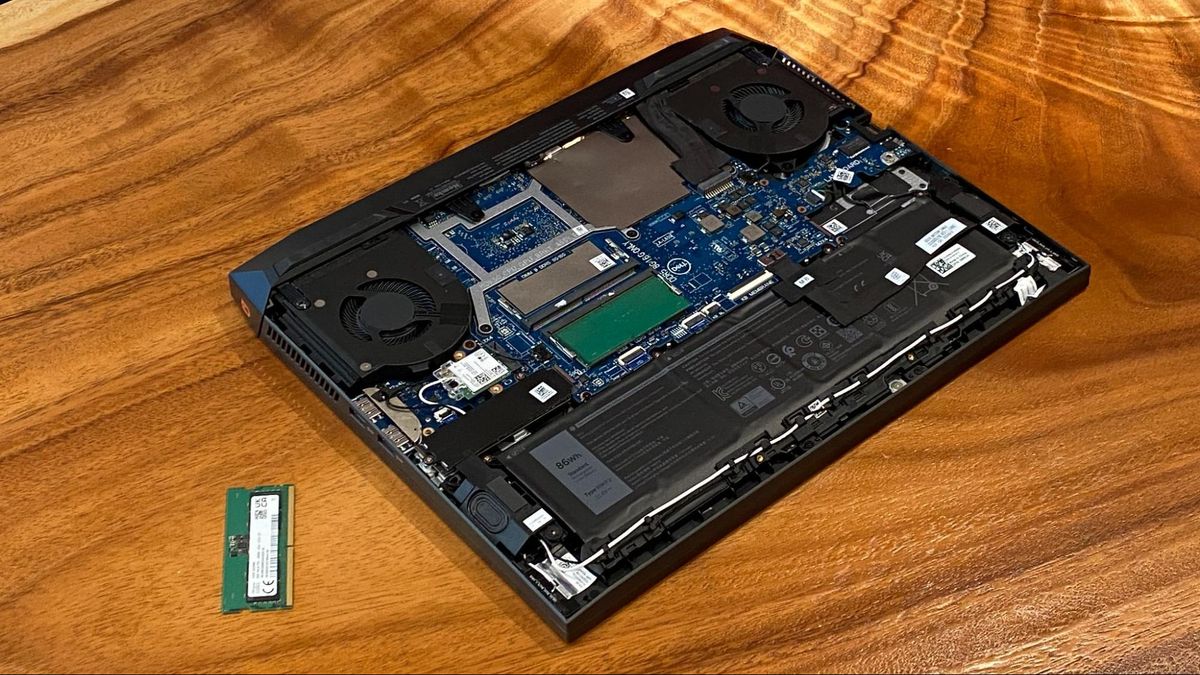
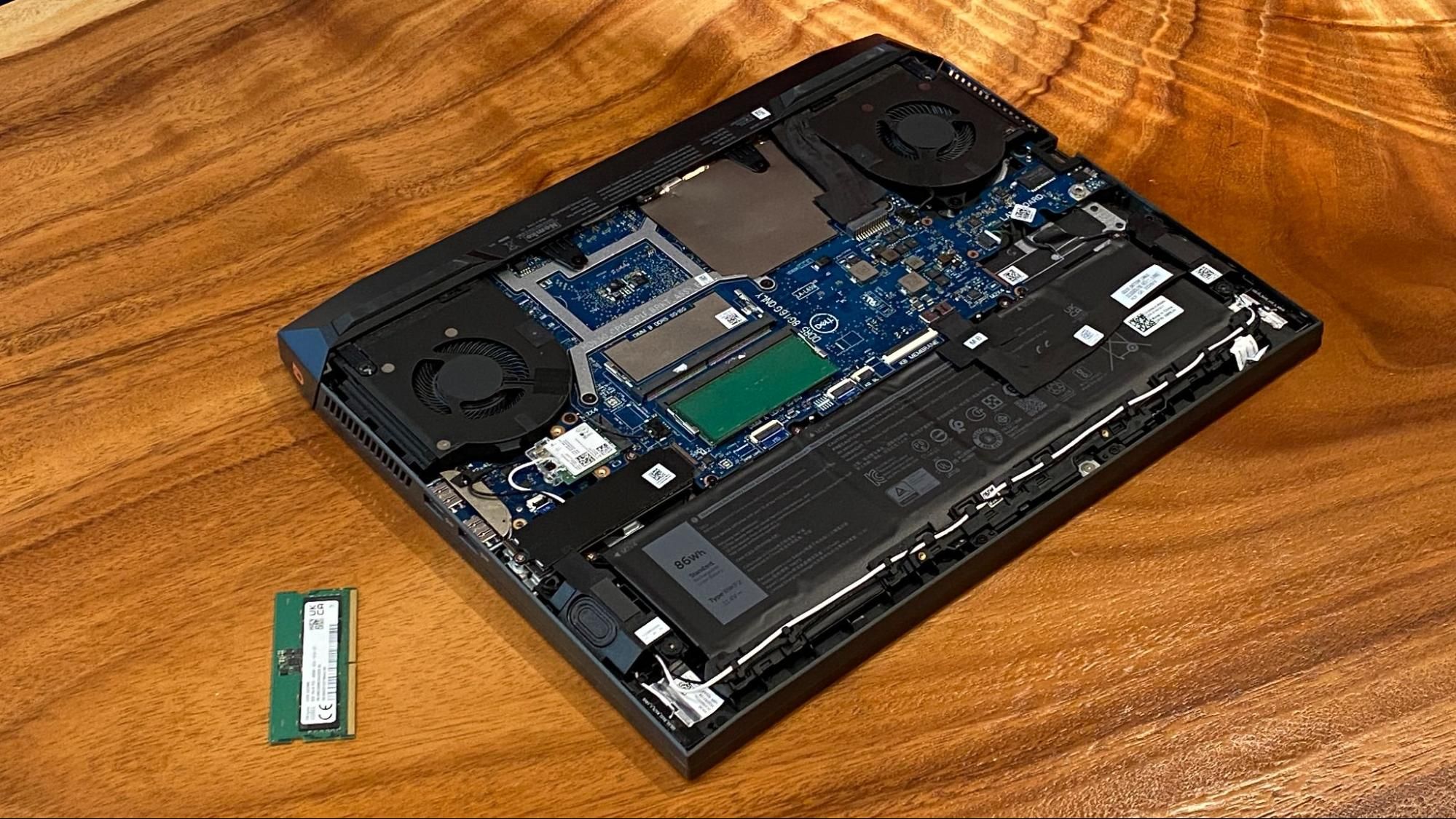
Find the memory slot. Existing modules are usually covered by a thin shield or located near the center of the motherboard.
If you are replacing a module, gently pull the side clips away from the module. It should rise at an angle. Slide it out by holding the edges.
Align the notch on the new memory module with the ridge inside the slot. The notch prevents correct modules from being inserted backward.
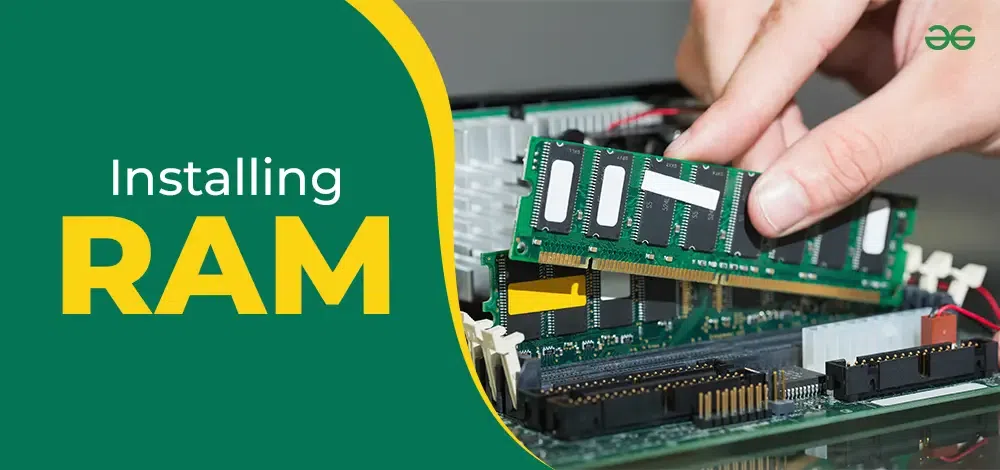
Slide the module into the slot at roughly a 30-degree angle. Push it firmly but gently until the contacts are mostly hidden.
Press the raised edge downward until the side clips lock into place. You should hear or feel a light click.
Reconnect the battery if you disconnected it.
Replace the bottom cover and tighten the screws evenly. Do not overtighten them.
Reconnect the charger and start the laptop.
The most common mistake when people learn how to install memory in laptop computers is pressing the module straight down into the slot. SO-DIMM modules normally enter at an angle first, then fold flat. If the module does not slide in smoothly, remove it and check the notch alignment.
Test the new laptop memory
After learning how to install memory in laptop systems, verify that the operating system sees the upgrade. A laptop may power on even when the module is not fully seated, so visual confirmation is not enough.
In Windows:
- Open Task Manager.
- Select Performance.
- Click Memory.
- Compare the displayed capacity with the amount you installed.
You can also open System Information and check the installed physical memory. If you installed 16 GB but Windows reports about 8 GB, one module may not be recognized.
Run a memory test if the laptop freezes, restarts, displays a blue screen, or shows strange errors. Windows Memory Diagnostic is built in:
- Press the Windows key.
- Search for Windows Memory Diagnostic.
- Choose Restart now and check for problems.
- Let the test complete before using the computer.
For deeper testing, a bootable memory test tool can run several passes. One pass may miss an intermittent error, so longer testing gives more confidence.
On Linux, tools such as Memtest86 or the system’s built-in hardware test options can help identify memory faults. Follow the tool’s instructions carefully and save your work before restarting.

Troubleshoot laptop memory problems
If the laptop does not start after installation, stay calm. Most installation problems come from poor seating, incorrect compatibility, or a loose battery connector.
Try these steps:
• Turn off the laptop and unplug it.
• Remove and reinstall the memory module.
• Confirm that the notch matches the slot.
• Test one module at a time.
• Try each module in each available slot.
• Check that the battery connector is secure.
• Confirm that the module type matches the laptop.
• Review the laptop’s maximum supported capacity.
• Install the original memory again to compare results.
A laptop may show a black screen and restart several times after a memory change. Some systems are training the memory, especially after a capacity or speed change. Give the machine a few minutes, but disconnect power if it repeatedly loops without starting.
If only one of two modules works, the issue may be a faulty module, a damaged slot, or a mismatch between the modules. Testing each part separately helps isolate the cause.
A memory error does not always mean the new RAM is defective. Firmware limits, outdated BIOS software, mixed module characteristics, or a damaged slot can produce similar symptoms. Use the manufacturer’s diagnostic tools before buying another module.
Common mistakes to avoid
Several small mistakes can turn a simple upgrade into an expensive repair. These tips make how to install memory in laptop projects safer.
• Buying desktop DIMM memory instead of laptop SO-DIMM memory
• Mixing DDR generations
• Ignoring the laptop’s maximum RAM limit
• Installing a module backward
• Touching the gold contacts
• Working while the charger is connected
• Leaving the internal battery connected when the manual says to disconnect it
• Losing screws or using a screw that is too long
• Forcing the bottom cover or memory module
• Skipping a backup
• Assuming a laptop supports an upgrade without checking its model number
One repair-bench lesson is worth remembering: resistance is a warning, not a challenge. If a module needs unusual force, stop and inspect the slot, notch, and angle. Gentle pressure is normal; bending or pushing hard is not.
Also, do not expect RAM to repair a failing motherboard. If the system still crashes with known-good, compatible memory, the problem may be elsewhere.
Benefits and limits of a laptop memory upgrade
Installing more RAM can make a laptop feel much smoother. It may reduce slowdowns caused by constant swapping between RAM and storage, especially when several large programs are open.
The upgrade is most useful when the laptop regularly reaches high memory usage. You may notice faster app switching, fewer browser reloads, and better performance while editing photos or working with large documents.
There are limits:
• RAM does not make every application open instantly.
• It does not replace a slow hard drive.
• It cannot overcome a weak processor in demanding software.
• It may not improve gaming if the graphics processor is the main limit.
• Soldered memory cannot usually be upgraded.
• Some laptops support only one memory configuration.
If your laptop still uses a mechanical hard drive, replacing it with an SSD may produce a larger improvement than adding RAM. If the system has 4 GB or 8 GB and you often multitask, however, a memory upgrade can be a smart and affordable step.
When professional help is a better choice
Most removable-RAM upgrades are suitable for careful beginners. Still, professional service is sensible in certain cases.
Consider expert help when:
• The laptop has soldered memory
• The bottom cover is sealed or difficult to remove
• The battery is swollen
• A screw head is stripped
• The laptop contains valuable business data
• The system fails to start after several careful tests
• You are not comfortable working near exposed circuitry
A swollen battery is a safety issue. Do not press on it, puncture it, or continue using the laptop normally. Shut the device down and contact a qualified repair center.
Warranty terms also vary. Opening a laptop does not automatically void every warranty in the United States, but damage caused during an upgrade may not be covered. Check the manufacturer’s current warranty terms before opening the case.
Frequently Asked Questions About How to Install Memory in Laptop
Can I install any RAM in my laptop?
No. The memory must match the laptop’s supported generation, format, capacity, speed range, and voltage requirements. Check the exact laptop model and service documentation before purchasing RAM.
How do I know if my laptop RAM is upgradeable?
Check the manufacturer’s manual for terms such as SO-DIMM slot, memory module, or user-upgradeable memory. If the memory is soldered to the motherboard, a normal RAM upgrade is not possible.
Do I need to remove the battery before installing laptop memory?
Disconnecting the battery is recommended when the manufacturer’s service instructions allow it. At minimum, shut down the laptop, unplug the charger, and follow the model-specific safety guidance.
Does adding RAM make a laptop faster?
It can make the laptop faster when low memory causes slowdowns, app reloads, or heavy use of virtual memory. It will not solve every performance issue, such as an aging processor, overheating, malware, or a failing storage drive.
Can I mix two different laptop RAM brands?
Different brands can work together if the modules have compatible specifications. Matching capacity, speed, voltage, and memory generation is safer, and identical modules may provide more consistent dual-channel performance.
What should I do if the laptop does not recognize the new RAM?
Power off the laptop and reseat the module at the correct angle. Test each module separately, inspect the slot, confirm the capacity limit, and run a memory diagnostic if the problem continues.
Is 16 GB of RAM enough for a laptop?
For many users, 16 GB is enough for browsing, office work, streaming, school tasks, and moderate creative work. People who edit high-resolution video, run virtual machines, or use professional 3D software may benefit from 32 GB or more.
Conclusion
Learning how to install memory in laptop computers is mainly a matter of choosing compatible RAM, working safely, and seating the module correctly. Check the model’s specifications, back up your files, disconnect power, protect against static, and test the upgrade after installation.
Take your time and treat the memory slot like a delicate keyhole. With the right module and careful steps, you can improve multitasking without replacing the entire laptop. Share your upgrade results or explore your manufacturer’s service guide before starting.