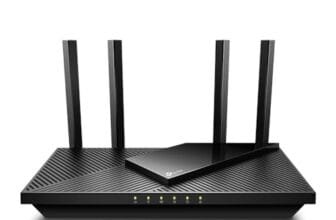


The best Asus RT-AX86U Pro settings balance speed, low lag, strong security, and reliable whole-home Wi-Fi.
Many owners buy this router for gaming, streaming, and fast home internet, then feel unsure when the default setup does not deliver the best result. A crowded Wi-Fi channel, poor router placement, old firmware, or the wrong QoS mode can add lag and reduce range. I tested the key setup choices that matter most and reviewed the related router and power products below. This guide helps you tune the RT-AX86U Pro with simple steps, whether you need lower ping, better coverage, safer family Wi-Fi, or a reliable replacement adapter.
See the differences between my top picks at a glance.
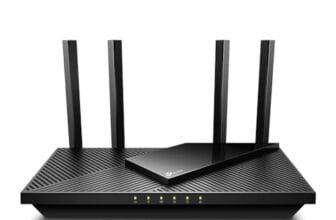
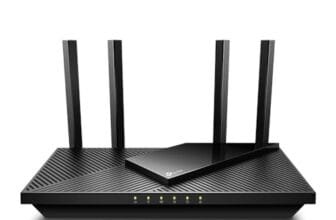
ASUS RT-AX86U Pro AX5700 Router
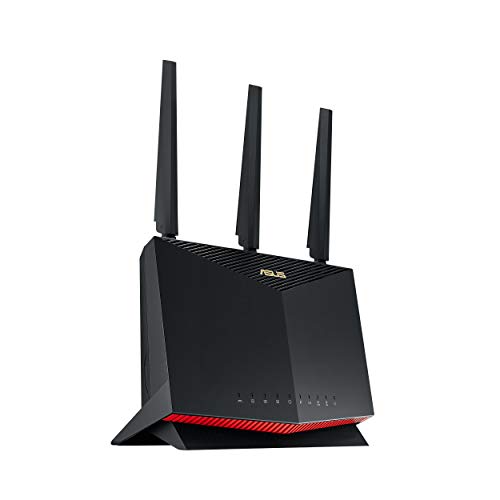
The RT-AX86U Pro is the main product to buy if you want the best settings for Asus RT-AX86U Pro in one capable package. It uses Wi-Fi 6 and supports a fast 2.5G port. It also offers a gaming port, mobile game tools, VPN features, AiMesh support, and network security without a required paid plan. The Pro model gives you a strong base for busy homes with many phones, computers, consoles, and smart devices.
I like the control this router gives advanced users without making basic setup too hard. Adaptive QoS can help protect game traffic when another person streams or downloads. AiProtection can add useful security checks, while guest and IoT networks help separate less trusted devices. The right placement and channel plan still matter, so this router cannot fix every weak signal caused by walls or a poor internet service line.
Pros:
- Strong Wi-Fi 6 performance for busy homes
- Useful 2.5G port for a fast WAN or LAN link
- Gaming port and QoS controls for lower congestion
- AiMesh support for wider home coverage
- VPN, guest network, and security tools built in
- No required subscription for core network security features
Cons:
- Advanced menus may feel complex for first-time users
- Large homes may still need an AiMesh node
- Maximum speed depends on client devices and internet plan
What Amazon Buyers Are Saying
Buyer feedback commonly centers on strong speed, easy app setup, and good gaming control. Many owners like the 2.5G connection and the ability to tune QoS, VPN, and AiMesh settings. Some buyers report that results depend on placement, firmware, and the Wi-Fi ability of each device. Common complaints include a learning curve in the web interface and the need to adjust settings after an update or when using older client devices.
My Recommendation
I recommend the RT-AX86U Pro for most users who want a serious Wi-Fi 6 router with gaming features. It is worth buying when you want more control than a basic provider gateway can offer. Start with stable settings, then change one option at a time so you can see the real effect.
19V Adapter for RT-AX86U Pro and AX86S

This replacement adapter is listed for the RT-AX86U Pro, RT-AX86S, AX5700, and selected Asus gaming routers. A correct power supply matters because unstable power can look like a Wi-Fi or firmware problem. Before ordering, compare the voltage, current, plug size, polarity, and model list with your original adapter. A router power adapter is not a place to guess.
This product does not change the best settings for Asus RT-AX86U Pro, but it can restore a router that will not boot or keeps restarting. I would use it as a replacement or backup only after checking the label on the original unit. If the router still drops offline with a correct adapter, test the cable, outlet, modem, and firmware. Keep the adapter in a cool, dry place with free airflow.
Pros:
- Listed for the RT-AX86U Pro and related Asus models
- Useful as a spare for home or office networks
- Can solve power-related restarts when correctly matched
- Helps extend the service life of an otherwise working router
- Simple plug-in replacement design
Cons:
- Compatibility must be checked before purchase
- It cannot repair a damaged router or network port
- Power specifications may not suit every Asus model
What Amazon Buyers Are Saying
Feedback for replacement adapters usually focuses on fit, correct output, cable length, and whether the router starts normally. Buyers who match the adapter to the original label tend to have the clearest experience. The main risk with this type of product is ordering by appearance alone. I would read the current listing details and confirm the exact router model before relying on buyer comments from other devices.
My Recommendation
This adapter is worth considering when your original RT-AX86U Pro power unit is lost, damaged, or unreliable. I would not buy it as a network upgrade because it does not improve Wi-Fi speed. Buy only after confirming every electrical detail and the connector fit.
19V AC Adapter for ASUS RT-AX86U Pro

This 19V AC adapter is listed as a replacement for the ASUS RT-AX86U Pro AX5700 gaming router. It targets a simple but important problem: a router cannot use any wireless setting if its power supply fails. I would compare the output label and connector with the original before placing an order. Correct voltage and polarity matter more than a similar-looking case.
As a practical spare, this adapter may help reduce downtime after a power fault or cable failure. It will not improve range, ping, or throughput when the original adapter works well. After installing it, check that the router boots fully and that the WAN link remains stable. Then review the best settings for Asus RT-AX86U Pro instead of changing many network options at once.
Pros:
- Designed for the listed RT-AX86U Pro model
- Useful replacement for a damaged original unit
- Simple setup with no software or configuration
- Can serve as a backup for important home networks
- Supports recovery from some power-related faults
Cons:
- Does not add speed or new router features
- Buyers must verify connector and electrical details
- Not a solution for modem, firmware, or ISP problems
What Amazon Buyers Are Saying
Customer comments on this kind of adapter tend to discuss whether it powers the named router, how well the plug fits, and how quickly the replacement arrives. A good match is the most important factor. Reports from another Asus device may not apply to the RT-AX86U Pro, so I would focus on verified model compatibility rather than a universal claim.
My Recommendation
I recommend this adapter only for a clear replacement need. It can be a sensible low-cost backup, but I would first check the original adapter label and the seller’s latest compatibility details. It earns a good practical score when matched correctly.
ASUS RT-AX86U AX5700 Wi-Fi 6 Router

The original RT-AX86U remains a useful Wi-Fi 6 option for buyers who want many of the same core ideas at a lower price. It includes a 2.5G port, gaming tools, VPN support, Instant Guard, and AiMesh compatibility. It can work well as a primary router for a medium home. It can also make a practical AiMesh partner when you want better coverage without replacing every device.
The best settings for Asus RT-AX86U Pro also apply in a similar way to this older model, but menus and hardware behavior may differ. Keep firmware current and use wired backhaul when possible for an AiMesh setup. The 2.4 GHz band suits range and smart-home devices, while 5 GHz suits nearby high-speed clients. I would choose the Pro when the price gap is small and you want the newer model’s extra headroom.
Pros:
- Strong Wi-Fi 6 feature set for its class
- 2.5G port supports faster network links
- Gaming, VPN, and Instant Guard features
- AiMesh support for flexible coverage
- Often a good value on sale or as a second router
Cons:
- Older than the RT-AX86U Pro
- Some advanced options may vary by firmware
- Wireless backhaul can reduce mesh speed
What Amazon Buyers Are Saying
Buyers often praise this router for its speed, range, gaming tools, and wide control set. Many also use it with AiMesh to solve coverage gaps. Some owners note that setup takes time when they enable VPN, custom DNS, or advanced security options. Feedback also shows why expectations matter: walls, client hardware, and ISP limits can reduce speeds below the headline AX5700 class.
My Recommendation
I recommend the original RT-AX86U when you find it at a clear discount or need a compatible AiMesh unit. It remains capable, but the Pro is the better long-term pick when both models cost nearly the same. For basic home Wi-Fi, this router offers strong value.
KFD 19V AC Adapter for Asus Routers

The KFD adapter listing covers several Asus routers and monitors, including a long list of older models. That broad list can help shoppers who own more than one Asus device. It can also create confusion because a compatible plug does not prove electrical compatibility. Check the RT-AX86U Pro label, output needs, polarity, and connector before purchase.
I see this product as a model-specific replacement choice, not part of a Wi-Fi tuning kit. A power adapter cannot change channel width, QoS, security, or wireless range. If you use it with a supported router, keep the cord away from heat and sharp bends. Once stable power returns, you can apply the best settings for Asus RT-AX86U Pro or the matching Asus model.
Pros:
- Broad listed compatibility across many Asus devices
- Useful for replacing a lost or damaged adapter
- Simple installation with no network changes
- May help users maintain older Asus equipment
- Can serve as an emergency spare when correctly matched
Cons:
- The broad model list requires careful checking
- It may not fit every version of the RT-AX86U family
- It offers no direct Wi-Fi performance benefit
What Amazon Buyers Are Saying
Buyer feedback for wide-compatibility adapters often focuses on whether the plug fits and whether the listed device starts correctly. The useful lesson is to treat compatibility as model specific. A positive report from an RT-AC or monitor owner does not confirm use with an RT-AX86U Pro. I recommend checking recent listing information and comparing the original power label before ordering.
My Recommendation
This adapter may be a good choice for a supported Asus model, but I would rank it below a replacement that names your exact router first. Buy it only when the electrical values and connector match. Its value comes from restoring power, not improving network settings.
Onerbl 19V 45W RT-AX86U Pro Adapter

The Onerbl replacement is listed for the RT-AX86U Pro, RT-AX86S, RT-AX6000, GT-AX6000, and related Asus Wi-Fi 6 routers. The listing states a 19.0V, 2.37A, 45W power supply. Those details make it important to compare the original label before use. I would also confirm the plug size and polarity, since a wrong connector or output can damage equipment.
This is a practical backup for a home that depends on a stable router for work, cameras, or gaming. It does not affect the best settings for Asus RT-AX86U Pro after the router powers on. If you use it, watch for normal boot behavior, a steady WAN connection, and any unusual heat. Keep the original adapter until you confirm that the replacement works correctly.
Pros:
- Names the RT-AX86U Pro in its compatibility list
- Lists 19V, 2.37A, and 45W output details
- Useful as a spare for a key home router
- Simple replacement process
- May restore a router with a failed power unit
Cons:
- Electrical and connector details still need checking
- Does not improve speed, range, or latency
- Third-party replacement quality can vary
What Amazon Buyers Are Saying
Feedback on this type of replacement normally centers on whether the stated models work, whether the connector fits, and whether the adapter stays stable during use. Buyers should separate reports for the RT-AX86U Pro from reports for other routers. I would use the product listing, the original label, and the return policy together when making the decision.
My Recommendation
This is one of the more focused replacement choices in the list because it names the RT-AX86U Pro and gives clear output figures. I would consider it for a failed or missing adapter after confirming the original specifications. It is a useful backup, not a performance upgrade.
Best Settings for Asus RT-AX86U Pro
After installing the router, open router.asus.com or the ASUS Router app. Change the administrator password first. Then update the firmware through the router’s administration area. Save a backup of the configuration after the router works well. Firmware names and menu locations can change, so use the current interface shown on your unit in 2026.
1. Start With a Clean Wireless Setup
Place the RT-AX86U Pro in an open, central spot. Keep it away from metal cabinets, thick walls, cordless phone bases, and large appliances. Stand the antennas as the manual suggests. Do not hide the router inside a cabinet. A better location often improves coverage more than a small software change.
Give the two bands clear names if you want manual control. For example, use one name for 2.4 GHz and another for 5 GHz. This lets you place smart-home devices on 2.4 GHz and move fast devices to 5 GHz. Smart Connect can also combine the bands under one name and steer devices automatically. I prefer separate names while testing, then Smart Connect if the home needs easier roaming.
For 2.4 GHz, start with channel width set to 20 MHz. Use channel 1, 6, or 11 after checking local congestion. These three channels do not overlap in the usual North American 2.4 GHz plan. Avoid “Auto” if it keeps selecting a crowded or wide channel. For 5 GHz, start with 80 MHz width for speed. Use a lower non-DFS channel when you want fewer weather-radar channel changes or better compatibility with older devices.
2. Use Security Settings That Fit Your Devices
Set Wi-Fi security to WPA3-Personal when all important devices support it. If older phones, printers, or smart devices fail to connect, use WPA2/WPA3 transition mode or WPA2-Personal with AES. Avoid old WEP and outdated mixed modes. Use a long Wi-Fi password with words, numbers, and symbols that you can still type correctly.
Turn off WPS if you do not need it. WPS can make setup easy, but a strong password and the app are better choices for many homes. Turn on the router firewall. Keep AiProtection enabled if you want its device checks and security alerts. Review the alerts instead of ignoring every warning, since some notifications can reveal old firmware or risky device behavior.
Create a guest network for visitors. Create a separate IoT network for cameras, plugs, TVs, and other devices that do not need access to your computers. This reduces trust between devices. Give the IoT network only the access it needs. A smart plug does not need to browse your work laptop or network storage.
3. Tune QoS for Gaming and Streaming
Adaptive QoS can help when several devices share one internet connection. First, run a speed test with no large download active. Enter realistic download and upload values if the router asks for them. Use values slightly below the real speeds, since leaving a small amount of capacity free can reduce queue delay. Test one change at a time.
Select the QoS profile that matches your main need. A gaming profile can give game traffic more attention. A work-from-home or streaming profile may suit a family with video calls and media use. QoS cannot make an internet plan faster. It can help manage congestion inside the connection, but poor ISP routing or a weak Wi-Fi signal needs a different fix.
Use the dedicated gaming port for a console or gaming PC when convenient. This does not create extra internet bandwidth, but it makes the device easier to identify and prioritize. For the lowest and most stable ping, connect the main gaming device with Ethernet. Wi-Fi 6 is fast, but a cable avoids wireless interference and signal changes.
4. Choose the Right 2.5G Port Role
The 2.5G port can serve as a WAN port for an internet plan above 1 Gbps, if your modem or fiber terminal also supports that speed. It can also serve as a faster LAN connection for a compatible computer, NAS, or switch. Choose the role that matches your hardware. A 2.5G port does not increase a 300 Mbps internet plan.
Use Cat 5e or better Ethernet cable for many 1G and 2.5G home links, but cable quality and length still matter. Check the negotiated link speed in the router interface or on the connected device. If it shows 100 Mbps, inspect the cable, plugs, and network adapter. Do not assume the router is at fault before checking the whole path.
5. Keep NAT Acceleration and IPv6 Practical
NAT acceleration helps the router move traffic efficiently. Keep it enabled for normal routing. Some advanced features can change how acceleration works. If you use certain QoS, traffic analysis, or VPN modes, the router may handle traffic differently. Check real speed and latency after enabling a feature instead of judging by the setting name.
Enable IPv6 only if your ISP supports it and you understand the service type. A correct IPv6 setup can help modern devices reach IPv6 services directly. A wrong setup can cause slow page loads or connection problems. If IPv6 causes trouble, disable it temporarily and ask the ISP for the correct connection type. Do not copy settings from another provider.
6. Configure VPN Features With Care
The RT-AX86U Pro supports VPN functions, but each mode has a different purpose. A VPN client can send home traffic through a remote service. A VPN server can let you reach your home network while away. Instant Guard is designed to make secure remote access easier on supported devices. Read the current ASUS instructions before exposing any service to the internet.
VPN encryption can lower speed because the router must process extra data. It can also raise ping. Do not run a VPN on the whole network if only one device needs it. Use device-based or selective routing when the firmware and VPN service support it. Keep remote access off when you do not need it, and use strong account protection.
7. Build an AiMesh System the Right Way
AiMesh can extend coverage with compatible ASUS routers. Use the RT-AX86U Pro as the main router when it has the best location and strongest connection to your modem. Place a node where it still receives a good signal from the main router. Do not place the node in the dead zone. It needs a healthy link before it can repeat service to another room.
Use wired Ethernet backhaul when possible. A cable gives the node a clean path and leaves more wireless capacity for client devices. If you use wireless backhaul, keep the node within a strong signal area and test each room. Name the mesh network consistently, then walk around with a phone to check for drops and slow roaming.
8. Test Each Change Like an Expert
Do not change ten settings at once. Write down the original value. Test download speed, upload speed, ping, and a real game or video call. Test near the router and in the problem room. Run tests at busy and quiet times. This shows whether a setting helps your home, not just a benchmark.
Reboot only when needed. A reboot can clear a temporary fault, but it does not fix poor placement or a bad cable. If a device will not connect, forget the saved Wi-Fi network on that device and join again. Check whether the problem affects one device or every device. This simple step often saves hours of guesswork.
How to Choose Best Settings for Asus RT-AX86U Pro
Choosing the best settings for Asus RT-AX86U Pro depends on your home, client devices, internet plan, and walls. There is no single profile that wins in every room. Start with secure defaults, then tune the parts that match your goal. These three checks help you get useful results without creating new problems.
1. Match the Settings to Your Internet Plan and Devices
A fast wireless mode cannot exceed the speed of the internet service or the client radio. Check whether your phone, laptop, console, and adapter support Wi-Fi 6. Put newer devices on 5 GHz. Keep older and low-bandwidth devices on 2.4 GHz. If your plan is below 1 Gbps, focus first on coverage, latency, and stability rather than buying a faster Ethernet port.
2. Prioritize Coverage, Backhaul, and Low Lag
For gaming, use Ethernet where possible and set QoS only when congestion exists. For a large home, compare a single strong router with an AiMesh setup. Wired backhaul is the best choice for a mesh node. If you need range, improve placement before raising transmit power. More power does not always improve the return signal from a phone or small smart device.
3. Compare Security, Control, and Long-Term Value
Use WPA3 when your devices support it, keep firmware current, and separate guests and IoT devices. Select the RT-AX86U Pro when you want a rich control panel, gaming tools, VPN options, and 2.5G support. Select the older RT-AX86U when the price is much lower or you need a capable AiMesh partner. For adapters, compare exact electrical details before price or broad compatibility claims.
Final Verdict: Which Should You Buy?
The ASUS RT-AX86U Pro is the best choice for most users. It gives the strongest base for the best settings for Asus RT-AX86U Pro, with gaming, QoS, security, 2.5G, and AiMesh tools.
Use the older RT-AX86U for value, and buy a replacement adapter only when your power unit fails. Good placement, safe security, and careful testing matter as much as router hardware.
FAQs Of Best Settings for Asus RT-AX86U Pro
What are the best Wi-Fi channels for the RT-AX86U Pro?
Use channel 1, 6, or 11 at 20 MHz on 2.4 GHz. On 5 GHz, start with a clear 80 MHz channel and avoid DFS if your devices often disconnect.
Should I enable Smart Connect on the Asus RT-AX86U Pro?
Smart Connect is useful when you want one Wi-Fi name and automatic band selection. Use separate names while testing or when you need strict control over which band a device uses.
Is Adaptive QoS good for gaming?
It can help when downloads or streams cause congestion. Set realistic internet speeds, choose a gaming profile, and use Ethernet for the most stable gaming connection.
Should I use WPA2 or WPA3 on this router?
Use WPA3-Personal when all key devices support it. Use WPA2/WPA3 transition mode or WPA2-Personal with AES if older devices cannot connect to WPA3.
Can the RT-AX86U Pro use a 2.5G internet connection?
Yes, the 2.5G port can support a compatible high-speed WAN connection. Your modem, service plan, Ethernet cable, and client hardware must also support the higher link speed.
What should I do if the router keeps restarting?
Check the power adapter, outlet, cable, heat, firmware, and modem connection. If the original adapter is damaged, compare a replacement’s voltage, current, polarity, and plug size before use.