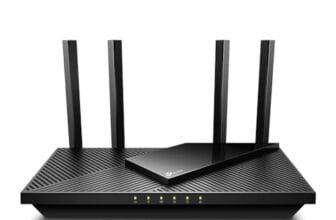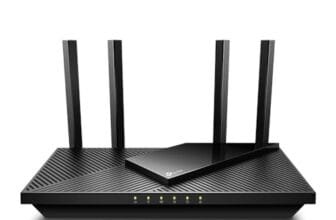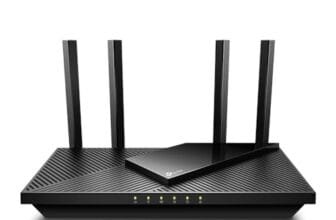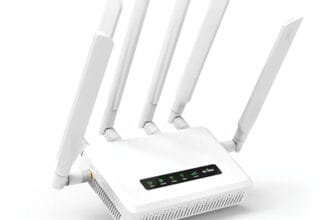


The best router for wireless printing keeps your printer connected, devices visible, and home printing simple.
You press print, then nothing happens. The printer shows as offline, the laptop uses a different Wi-Fi band, or an older USB printer cannot join the network at all. I know how frustrating that feels. The products below solve different parts of that problem. The TP-Link Archer A8 and Archer A6 are true Wi-Fi routers. The StarTech, Xiiaozet, and CHEECENT models are print servers that add network access to a USB printer. I explain the difference so you can choose the right setup for your home, office, or shared workspace.
See the differences between my top picks at a glance.
| Product | Best For | Network Type | Printer Connection | Key Advantage | Buy |
|---|---|---|---|---|---|
| StarTech PM1115U2 | One wired USB printer | Wired Ethernet | USB 2.0 | Simple, compact print sharing | View on Amazon |
| Xiiaozet LK100W | Wireless USB printing | Ethernet or Wi-Fi | USB 2.0 | Converts a USB printer to network use | View on Amazon |
| CHEECENT CR202 | Two-port printer sharing | Ethernet or Wi-Fi | Two USB ports | Flexible multi-device setup | View on Amazon |
| TP-Link Archer A6 | Budget home Wi-Fi | Dual-band Wi-Fi 5 | Network printer support | Low-cost router with broad coverage | View on Amazon |
| TP-Link Archer A8 | Busy home networks | Dual-band Wi-Fi 5 | Network printer support | More wireless capacity | View on Amazon |
A quick note before the reviews: a router and a print server do different jobs. A router creates the local network and gives devices a path to each other. A print server connects a USB-only printer to that network. A modern Wi-Fi printer may work directly with a router, while an older USB printer often needs a print server. This distinction matters more than raw wireless speed.
StarTech PM1115U2 Print Server
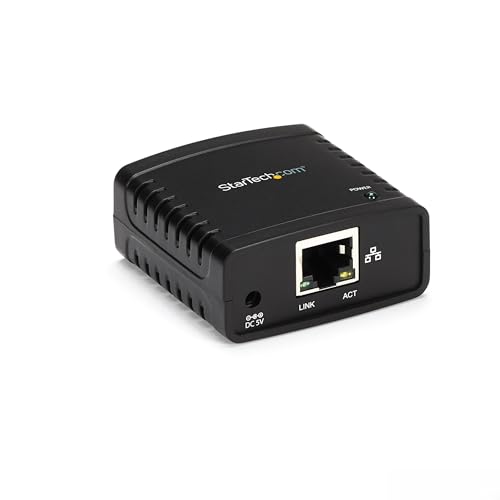
The StarTech PM1115U2 is a compact network print server for one USB printer. It uses a USB 2.0 connection on one side and a wired Ethernet connection on the other. This makes it useful when your printer lacks built-in Wi-Fi but sits near a router or network switch. It focuses on one task and avoids the cost of replacing a working printer.
This model suits users who value a stable wired link over a wireless setup. You connect the printer to the server, connect the server to your network, and then add the printer from your computer. The 10/100Mbps Ethernet link is far faster than most printer jobs need. Still, setup may require a little network knowledge, and compatibility can depend on the printer and operating system.
Pros:
- Gives a USB printer access to a local network
- Compact design fits beside most printers
- Wired Ethernet can reduce wireless dropouts
- Works well for shared office or home printing
- Uses a standard USB 2.0 printer connection
- Useful when replacing a printer would cost more
Cons:
- It does not create Wi-Fi by itself
- It supports one printer connection
- Setup is not as simple as a modern plug-and-play Wi-Fi printer
What Amazon Buyers Are Saying
Buyer feedback for compact print servers often centers on the same practical points: people like the small size, the ability to keep an older printer in service, and the freedom to print from more than one computer. Wired operation also appeals to buyers who want fewer wireless variables. These are strong reasons to consider the StarTech model in a home office.
The main complaints tend to involve setup and device support. A print server may need a manual IP address, a driver, or a printer-specific setting. Some printer functions, such as scanning, card reading, or two-way status reports, may not pass through a basic print server. I suggest checking the printer model and the current operating system before buying.
My Recommendation
I recommend the StarTech PM1115U2 for a single USB printer that sits close to a router, switch, or Ethernet wall jack. It is not a wireless router, but it can be the best router for wireless printing setup when your real need is a reliable bridge between an older printer and your network. Buy it when stability matters more than cable-free placement.
| Category | Rating |
|---|---|
| Print sharing reliability | 4.5/5 |
| Setup simplicity | 3.5/5 |
| Compatibility potential | 4/5 |
| Build and design | 4.5/5 |
| Overall Rating | 4.1/5 |
Xiiaozet LK100W Wireless Print Server

The Xiiaozet LK100W targets a common problem: a USB printer that works well but has no wireless network feature. It can connect that printer to a network through Ethernet or Wi-Fi, which gives you more freedom in placement. Multiple computers can then reach the shared printer through the local network. This approach can cost less than buying a new wireless printer.
I see this model as a flexible option for a small home or office. Wireless placement can help when the printer sits far from the router or when running a cable would look untidy. The trade-off is a more involved setup than direct Wi-Fi printing. You should also confirm that your printer model supports the print functions you need through a network print server.
Pros:
- Supports wireless printer sharing for compatible USB printers
- Ethernet gives you a second connection method
- Helps extend the useful life of older printers
- Lets several computers access one shared printer
- Useful when the printer cannot reach the router by cable
- Small format should fit most desk setups
Cons:
- It may require manual setup and network configuration
- Not every printer feature will work through a print server
- Wireless performance depends on the main router and signal quality
What Amazon Buyers Are Saying
Common buyer interest in wireless print servers comes from the wish to reuse an older USB printer. Buyers often value the ability to place the printer away from the router and share it with several computers. The Ethernet fallback also helps during setup or in rooms where wireless coverage is weak.
The usual concern is that the unit is not truly plug and play for every printer. Buyers may need to use an installation guide, find the device on the network, or add a standard TCP/IP printer port. Some reviews may also mention limits with scanning or printer status data. I would treat the product as a print-sharing tool, not as a full replacement for every feature in a printer’s original software.
My Recommendation
The Xiiaozet LK100W is worth considering when you need wireless access for a compatible USB printer. It is a better match than a new router if the router already provides good Wi-Fi and the printer lacks network access. For buyers who want the best router for wireless printing without replacing an older printer, this print server offers a practical path.
| Category | Rating |
|---|---|
| Wireless flexibility | 4/5 |
| Printer sharing | 4/5 |
| Setup simplicity | 3.5/5 |
| Connection options | 4.5/5 |
| Overall Rating | 4/5 |
CHEECENT CR202 Wireless Print Server
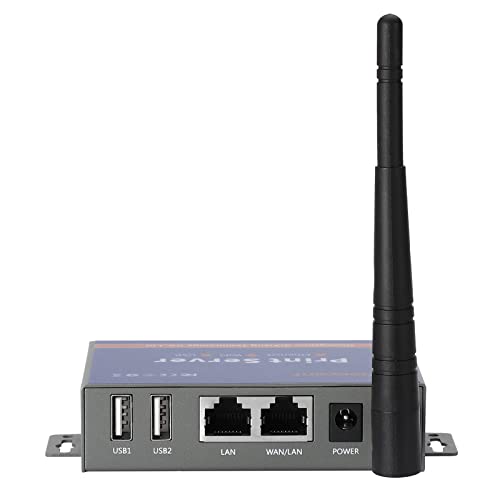
The CHEECENT CR202 is built for users who need more than one USB printer connection. Its two-port design can help a small office share compatible printers across a network. It supports wireless and Ethernet networking, so you can choose the connection that fits your room. The product listing also identifies support for Windows, Mac, and Linux environments.
This print server makes sense for a mixed-device workspace, but it needs realistic expectations. The listing states that it is not plug and play, so you should plan time for setup. You may need to install software, assign a network address, and add each printer on the computers that will use it. If you only have one printer, a simpler one-port model may be easier to manage.
Pros:
- Two USB ports support a broader shared-printer setup
- Offers both Wi-Fi and Ethernet connection paths
- Can suit Windows, Mac, and Linux work environments
- Useful for a small office with more than one printer
- May reduce the need for separate print-sharing devices
- Supports a flexible network layout
Cons:
- The product is not designed for plug-and-play setup
- Printer compatibility can vary by model and function
- More settings can mean more troubleshooting for beginners
What Amazon Buyers Are Saying
Buyers who choose a two-port print server usually want flexibility. They may have two USB printers, a shared office, or several computers that need access. The option to use Wi-Fi or Ethernet can also help buyers adapt the device to an existing network instead of changing the whole room layout.
The most important review pattern to watch involves installation. A product that supports several operating systems may still require different steps on each system. Buyers may also see mixed results with multifunction printers, especially when they expect scanning to work over the same connection. I recommend reading the latest listing details and checking your printer’s network support before ordering.
My Recommendation
I recommend the CR202 for a technically confident buyer who needs two USB printers on one network. It is not my first choice for someone who wants a quick setup. However, it can provide strong value when its extra port and broad computer support match your needs. In a multi-device office, it may be more useful than buying a new wireless router alone.
| Category | Rating |
|---|---|
| Multi-printer support | 4.5/5 |
| Network flexibility | 4/5 |
| Operating system range | 4/5 |
| Ease of setup | 3/5 |
| Overall Rating | 3.9/5 |
TP-Link Archer A6 AC1200 Router

The TP-Link Archer A6 is a dual-band AC1200 wireless router for homes that need dependable basic networking. It uses the 2.4GHz and 5GHz Wi-Fi bands, which lets you place older devices on 2.4GHz and newer, faster devices on 5GHz. It also includes gigabit Ethernet ports for wired devices. Four external antennas and beamforming features support coverage across a typical small or medium home.
The A6 can work well with a printer that already has Wi-Fi or Ethernet networking. It does not turn a USB-only printer into a wireless printer by itself. For that situation, you would pair the router with a compatible print server such as the StarTech or Xiiaozet. Features such as MU-MIMO, guest Wi-Fi, access point mode, and OneMesh support add useful value for a home network.
Pros:
- Dual-band Wi-Fi supports both 2.4GHz and 5GHz devices
- Gigabit Ethernet helps wired devices move data quickly
- Four external antennas support broad home coverage
- MU-MIMO can help manage several compatible devices
- Guest Wi-Fi separates visitors from the main network
- Access point mode adds placement flexibility
- OneMesh support can help compatible network expansion
Cons:
- It cannot directly share a USB-only printer without extra hardware
- It uses Wi-Fi 5 rather than newer Wi-Fi 6 technology
- Large homes may need additional coverage equipment
What Amazon Buyers Are Saying
Buyer feedback for the Archer A6 commonly focuses on value, coverage, and easy everyday use. Many shoppers choose it as an affordable replacement for an older router. Buyers also tend to appreciate dual-band operation, the gigabit ports, and the ability to create a guest network. These features make it a sensible base for a home with a network printer.
Common concerns include coverage limits in larger homes and the need to use the correct setup mode. Some buyers may also expect a USB printer to work just because it is connected to the same router. That is not how every USB printer works. If your printer has no network interface, add a print server or choose a printer with built-in Wi-Fi.
My Recommendation
The Archer A6 is a strong budget router for wireless printing when your printer already supports Wi-Fi or Ethernet. It offers the core network features most homes need without adding a high price. I would choose it for a small home, apartment, or light home office. It earns extra value when paired with a print server for an older USB printer.
| Category | Rating |
|---|---|
| Wi-Fi coverage | 4/5 |
| Printer network support | 4/5 |
| Wired performance | 4.5/5 |
| Smart features | 4/5 |
| Overall Rating | 4.2/5 |
TP-Link Archer A8 AC1900 Router

The TP-Link Archer A8 steps up from the A6 with an AC1900 dual-band design. It aims at homes with more active devices, such as phones, streaming boxes, laptops, cameras, and printers. MU-MIMO helps the router communicate with several compatible devices more efficiently. Gigabit ports also make it suitable for wired computers, network storage, or an Ethernet-connected printer.
For wireless printing, a stable local network matters more than extreme internet speed. The Archer A8 gives a Wi-Fi printer a capable home network and leaves room for other devices. Like the A6, it does not directly convert a USB-only printer into a wireless printer. You need a compatible print server for that task, but the A8 can provide the network foundation.
Pros:
- AC1900 dual-band capacity suits busier home networks
- MU-MIMO helps support multiple compatible devices
- Gigabit Ethernet ports work well with wired printers and computers
- Guest Wi-Fi helps protect the main home network
- Useful for streaming, work, browsing, and printing at the same time
- Offers more wireless headroom than a basic entry router
- Works well as the central router in a home office
Cons:
- It does not provide direct USB print-server support
- Wi-Fi 5 is older than current Wi-Fi 6 and Wi-Fi 7 standards
- Extra capacity may not matter in a small home with few devices
What Amazon Buyers Are Saying
Buyers often choose the Archer A8 for its balance of price and wireless capacity. Common positive themes include a simple setup, useful range, gigabit wired ports, and steady performance for everyday devices. A printer benefits from this stability when it shares the network with several active users.
Some buyers may report that results vary with home size, wall materials, and internet service. That is normal for any wireless router. Others may expect advanced features that belong to newer Wi-Fi generations. I suggest buying the A8 for its practical AC1900 network capacity, not for a future-proof label.
My Recommendation
The Archer A8 is my top router pick for a busy home that already owns a Wi-Fi printer or network print server. It gives connected devices more room to work than a basic router and includes useful guest-network controls. If you want the best router for wireless printing in a shared home office, the A8 is the most balanced choice in this group.
| Category | Rating |
|---|---|
| Multi-device Wi-Fi | 4.5/5 |
| Network printer stability | 4.5/5 |
| Wired connections | 4.5/5 |
| Value | 4.5/5 |
| Overall Rating | 4.5/5 |
How to Choose the Best Router for Wireless Printing
Choosing the best router for wireless printing starts with the printer, not the speed number on the router box. First, find out how the printer joins a network. A printer with built-in Wi-Fi needs a strong and steady wireless signal. A USB-only printer needs a print server. A printer with Ethernet can connect directly to a router or switch. Once you know this, you can avoid buying hardware that does not solve the real problem.
1. Match the Router to the Printer Connection
Check the ports and network features on the printer. If it has Wi-Fi, a dual-band router such as the Archer A6 or Archer A8 can provide the local network it needs. If it has only USB, a router alone may not help. In that case, choose a print server with the right USB connection and confirm that it supports your printer model.
Also decide if you need wireless or wired placement. The StarTech PM1115U2 uses Ethernet, so it fits best near a router or switch. The Xiiaozet LK100W and CHEECENT CR202 offer wireless options, which can help when the printer sits in another room. Wired links often make setup easier, while wireless links give you more freedom.
2. Check Local Network Stability and Device Load
Printing does not need the fastest internet plan. It does need devices to stay on the same local network. A weak signal, guest-network separation, range extender issue, or band isolation setting can stop a computer from finding a printer. Place the router in an open area, keep firmware current, and avoid hiding it inside a cabinet.
Count the devices that share the network. A small apartment with a few phones may work well with the Archer A6. A home office with laptops, cameras, smart TVs, and several users may benefit from the extra capacity of the Archer A8. Keep the printer and the computers on the same main network during setup. Guest Wi-Fi often blocks local device discovery by design.
3. Compare Setup, Compatibility, and Long-Term Value
Read the printer and print-server instructions before you buy. Look for support for your operating system and the functions you need. Basic printing often works more easily than scanning, ink-level reports, memory-card access, or special printer utilities. A print server may pass print jobs but not every feature of a multifunction printer.
Think about total cost. A print server can save money when your printer still works well. A new Wi-Fi printer may offer easier setup if the old printer has poor support. A new router makes sense when your current network drops devices or lacks coverage. The best router for wireless printing is the model that solves your connection problem without adding needless hardware.
Final Verdict: Which Should You Buy?
I recommend the TP-Link Archer A8 for homes with a Wi-Fi printer and many active devices. For an older USB printer, choose the Xiiaozet LK100W for wireless placement or the StarTech PM1115U2 for a stable wired link.
The best router for wireless printing depends on printer support, network range, and setup needs. Match the connection first, then compare speed, coverage, and value.
FAQs Of Best Router for Wireless Printing
Do I need a special router for wireless printing?
No. A standard router can support a printer with built-in Wi-Fi or Ethernet. A USB-only printer may need a separate network print server.
Can the TP-Link Archer A8 connect directly to a USB printer?
Not every USB-only printer will work directly with this router. Use a compatible print server when the printer has no built-in network feature.
Is a print server the same as a wireless router?
No. A router creates the local network. A print server connects a compatible USB printer to that network so other devices can print.
Which is better for an old USB printer, StarTech or Xiiaozet?
Choose StarTech when you prefer a wired Ethernet link. Choose Xiiaozet when you want wireless placement and your printer supports the print-server setup.
Why can my computer not find my wireless printer?
Check that both devices use the same main network. Also check signal strength, guest-network settings, printer status, and the printer’s current network address.